Which Tags Are Standard Google Analytics Campaign Parameters?
The five classic Google Analytics campaign parameters are utm_source, utm_medium, utm_campaign, utm_term, and utm_content.
These campaign parameters are simple combinations of prefixes and words added to the end of a marketing campaign URL. They are recognized by Google Analytics and used to identify where campaign traffic came from, which channel sent it, which campaign drove the visit, and which creative, or call to action was used.
For the broader strategy behind UTM setup, naming, and governance, read our full guide to UTM parameters. See when to use manual tags for examples across channels.
The Short Answer: The 5 Standard Google Analytics Campaign Tags
The five classic Google Analytics campaign parameters are utm_source, utm_medium, utm_campaign, utm_term, and utm_content. For manually tagged campaign links, Google recommends including source, medium, and campaign. GA4 also documents additional fields, including utm_id for a campaign ID and utm_source_platform for the platform directing the traffic.
The Standard Google Analytics Campaign Parameters Explained
Because Google Analytics recognizes campaign parameters only when they are added correctly to campaign URLs, it is important to understand how these tags are built and where they get placed.
These standardized “prefix+word” combinations help group traffic in analytics reports so marketers can analyze traffic performance across all promotions. This is how they work:
| Campaign Parameter | What It Identifies | Example Value |
|---|---|---|
utm_source |
The platform, publisher, website, email system, partner, or traffic source sending visitors to your site. | google, linkedin, newsletter |
utm_medium |
The marketing channel or delivery method used to send the traffic. | email, cpc, paid_social |
utm_campaign |
The campaign, promotion, launch, initiative, or marketing effort being tracked. | spring_sale, webinar_launch |
utm_term |
The paid keyword, audience, targeting group, or optional segmentation value. | brand_keyword, retargeting |
utm_content |
The creative, CTA, link placement, ad version, button, banner, or message variation. | blue_button, hero_banner |
What is the correct way to call them? Campaign Parameters = UTM Tags = Query Parameters
There are many names for the Google Analytics campaign parameters – tags, query parameters, utm codes – and they all refer to the same thing. In addition, today there are many custom parameters that companies use to enable more granular and detailed reporting.
UTM campaign parameters describe how a visit was generated. When a site supports the tagged URL, the parameters can be collected for tracking while the link still points to the intended landing page.
Where Do the Standard Google Analytics Campaign Parameters Go?
How Do You Add the Campaign Parameters to a URL link?
Add the first parameter after ? if the destination has no query string. If it already has a query string, append the parameter with &. Place all query parameters before any #fragment.
Simple UTM Link Example
In this example the destination already has plan=team, so the first UTM follows an ampersand. The anchor #pricing comes last.
https://example.com/demo?plan=team&utm_source=linkedin&utm_medium=paid_social&utm_campaign=product-launch#pricing
👉 For a full breakdown, visit: UTM Tags Explained
Visual: the URL keeps its original destination, with the campaign tracking values in its query string.
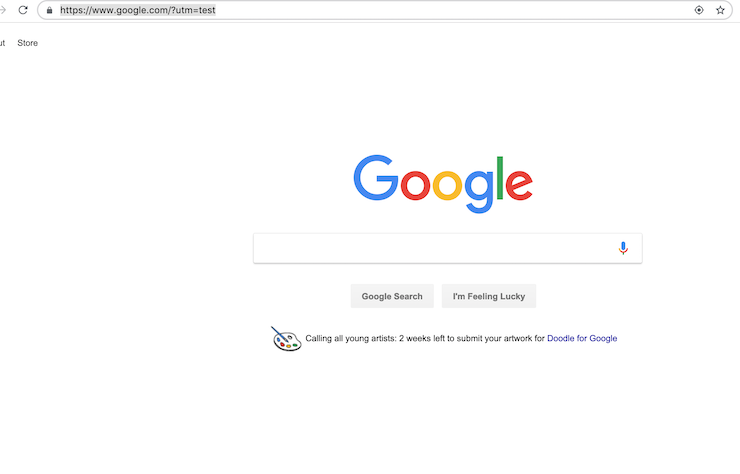
Important: Use a single question mark to begin the query string. Separate additional parameters with an ampersand.
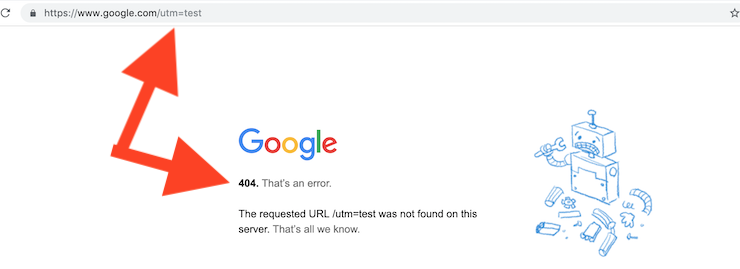
Google Analytics UTM Parameters need to be added with a specific “?” added at end of your link before you include the parameters or you will break your link
Why UTM Parameters Matter
When used correctly, UTM parameters allow you to:
- Track campaign performance accurately
- Identify high-performing channels
- Reduce wasted marketing spend
- Discover new audience behaviors
Stop "Direct" Visits from Stealing Your Campaign Traffic
Latest Changes in the Standard Google Analytics UTM Parameters
Google Analytics’ latest version – GA4 recognizes several new parameters in addition to the five standard ones:
NEW
- utm_id – a MUST for tracking effectively paid campaigns
- utm_source_platform – Denotes the platform that sent the traffic, such as “google_ads,” or “facebook”.
- utm_creative_format – Helps differentiate “video,” vs “search”.
- utm_marketing_tactic – Identifies the strategy of the campaign, like, “prospecting” or “remarketing”.
TRADITIONAL
- utm_campaign – Defines your campaign name
- utm_source – Identifies where traffic comes from (e.g., facebook.com)
- utm_medium – Defines the channel (email, social, paid, etc.)
- utm_content – Differentiates content variations (e.g., button vs banner)
- utm_term – Tracks keywords or variations
Important Rules to Remember
- Google Analytics does NOT generate UTM tags automatically
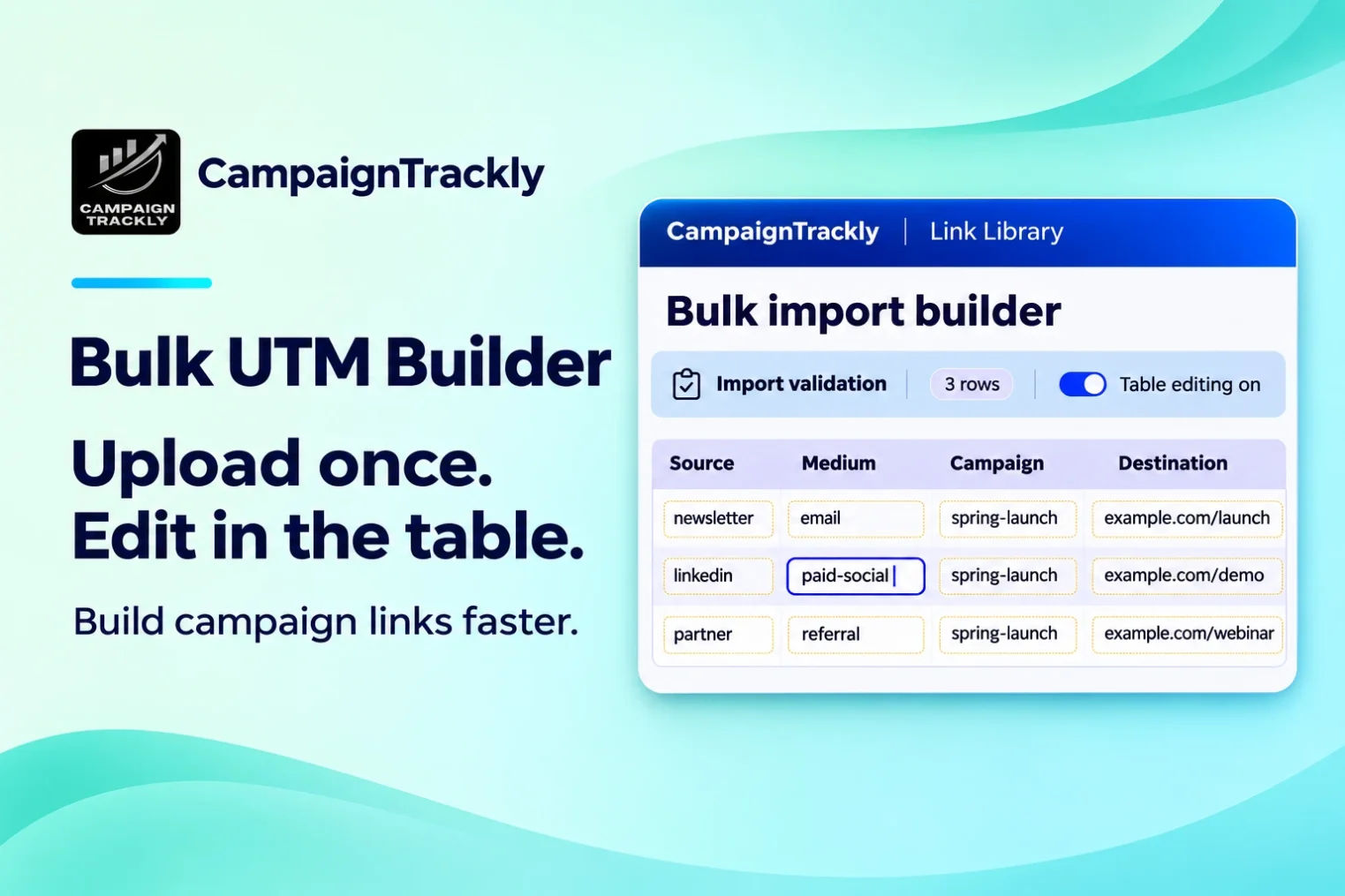
- You must build them manually or use a campaign url builder tool
- Do NOT use UTMs on internal links (only external traffic)
- Always include “utm_” in the standard parameter names
- Incorrect formatting can break reporting or data accuracy
Why Manual UTM Tagging Is Challenging
Building tracking links manually can quickly become complex:
- You must remember correct formatting
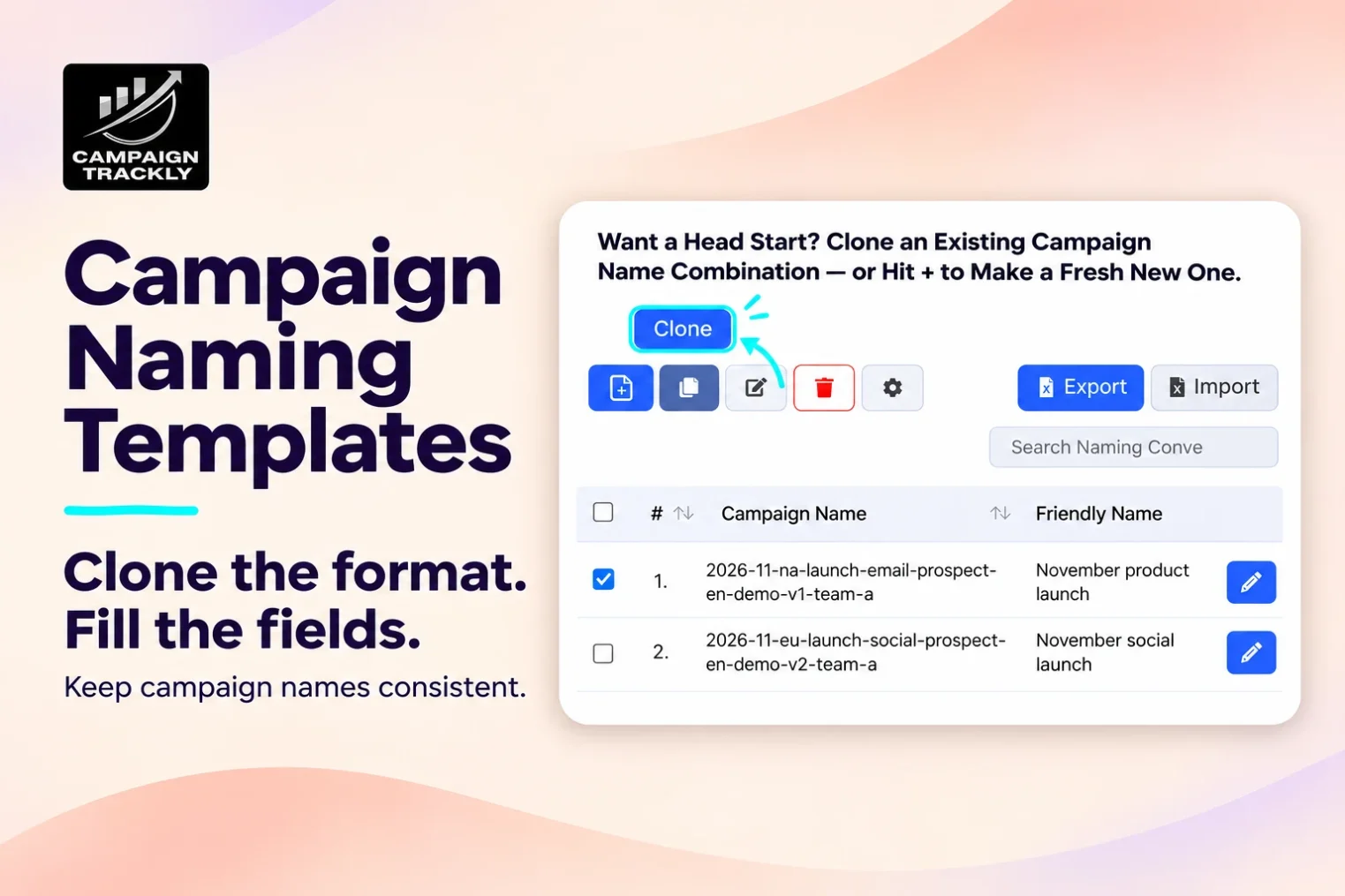
- You need consistent naming conventions
- Errors can break reporting or misclassify traffic
- Duplicate naming leads to messy analytics
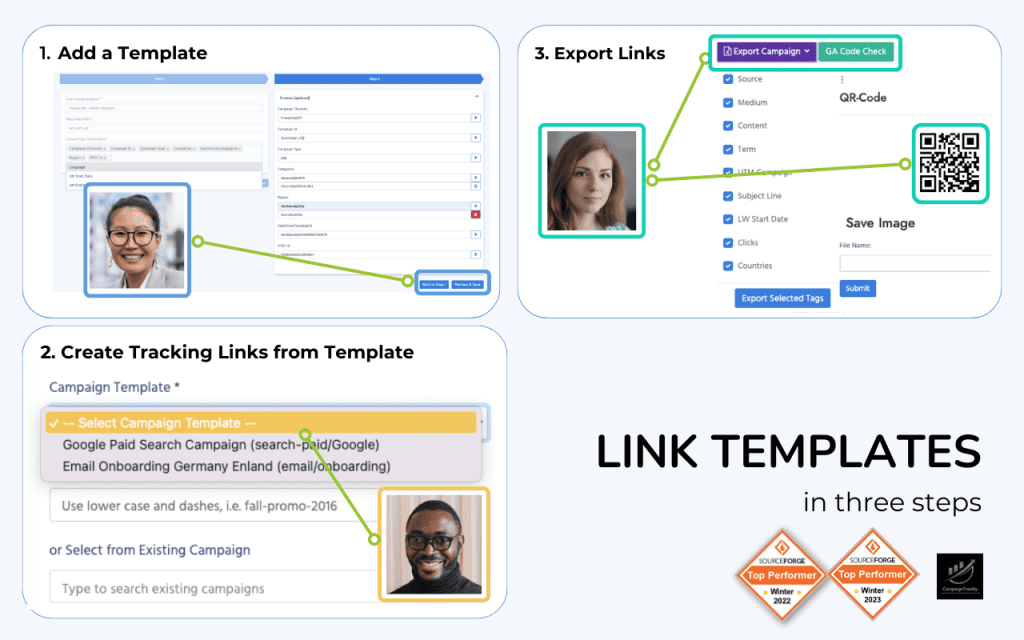
This is why many teams use tools like a campaign URL builder to automate tagging and ensure consistency.
Pre-Launch Tool
Free 3-Minute GA4 UTM Campaign Tracking QA Checklist
Don’t launch with broken tracking. Use this quick 3-minute guide to validate your UTM parameters and ensure 100% accurate attribution.
The QA Checklist Covers:
👉 Get the 3-Minute QA Checklist
Stop “Unassigned” traffic before it starts.
Where You See UTM Data in Google Analytics
We have a detailed guide to help you learn how to find campaign parameters in your Google Analytics platform.
But here is a quick reference to one of the many reports in GA4 that provide you with campaign tracking insights:
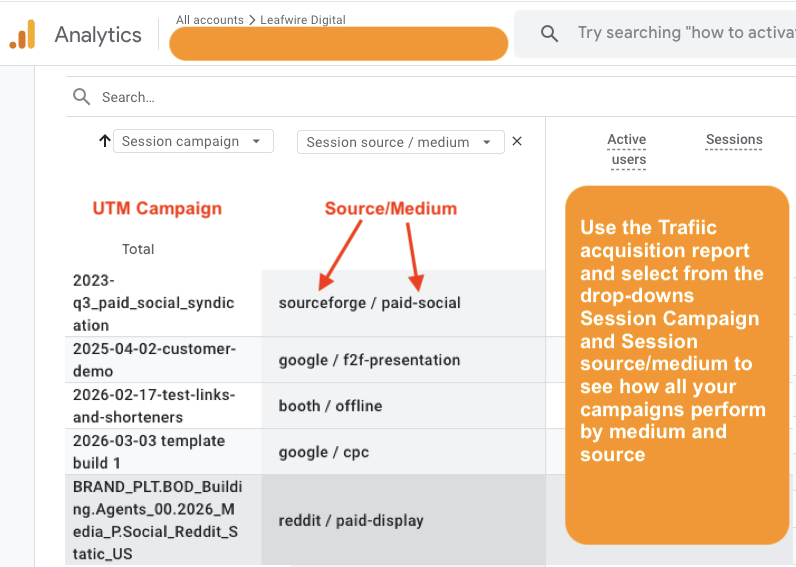
This GA4 report shows you how your google analytics utm parameters can be used for reporting on your marketing campaigns
Custom Campaign Parameters (Advanced)
To report on a custom campaign parameter in GA4, collect it as an event parameter and register it as an event-scoped custom dimension.
Examples:
- utm_region – Track performance by geographic region
- utm_category – Group campaigns by brand or business unit
Conclusion
Google Analytics traditionally has advocated for and supported five standard campaign analytics tracking parameters that have seen significant adoption among organizations of all types and sizes. But as digital marketing matures and businesses’ analytics needs evolve, it has added several new denominations to support more granular reporting and has provided many more options to drive intelligence using these invaluable tracking codes. Find more information about GA4 reporting here.
Q&As
What campaign parameter is not available by default in Google Analytics?
Utm_adgroup is not available by default as a standard Google Analytics campaign parameter. The standard campaign parameters are utm_source, utm_medium, utm_campaign, utm_term, and utm_content.
Which formats may be used to add a custom campaign parameter to a URL?
Custom campaign parameters are added to a URL using a parameter=value format. For example, ?utm_campaign=fall_sale can be added after the landing page URL. If the URL already has one parameter, additional parameters are added with an ampersand, such as &utm_source=google&utm_medium=cpc.
Which campaign parameter is not standard in Google Analytics?
utm_name and utm_placement are not standard GA4 campaign parameters. Use utm_campaign for the campaign name. A placement can be captured in utm_content if that fits your reporting conventions. Read the paid media macro guide for platform-level examples.
Is utm_adgroup a standard Google Analytics campaign parameter?
No. utm_adgroup is a custom parameter. Adding it to a URL does not automatically populate a built-in GA4 campaign dimension. If you need that value in reports, configure how your implementation collects it.