CAMPAIGNTRACKLY HOW-TO · BULK LINK BUILDING
Bulk-Upload UTM Link Generator: Build Tracking Links Across Campaigns in Seconds
Stop building tracking links row by row. Upload a single file with your campaign and link components—CampaignTrackly automatically matches tags to your approved governance library, flags exceptions for quick inline review, and generates compliant UTM tracking links across multiple campaigns at once.
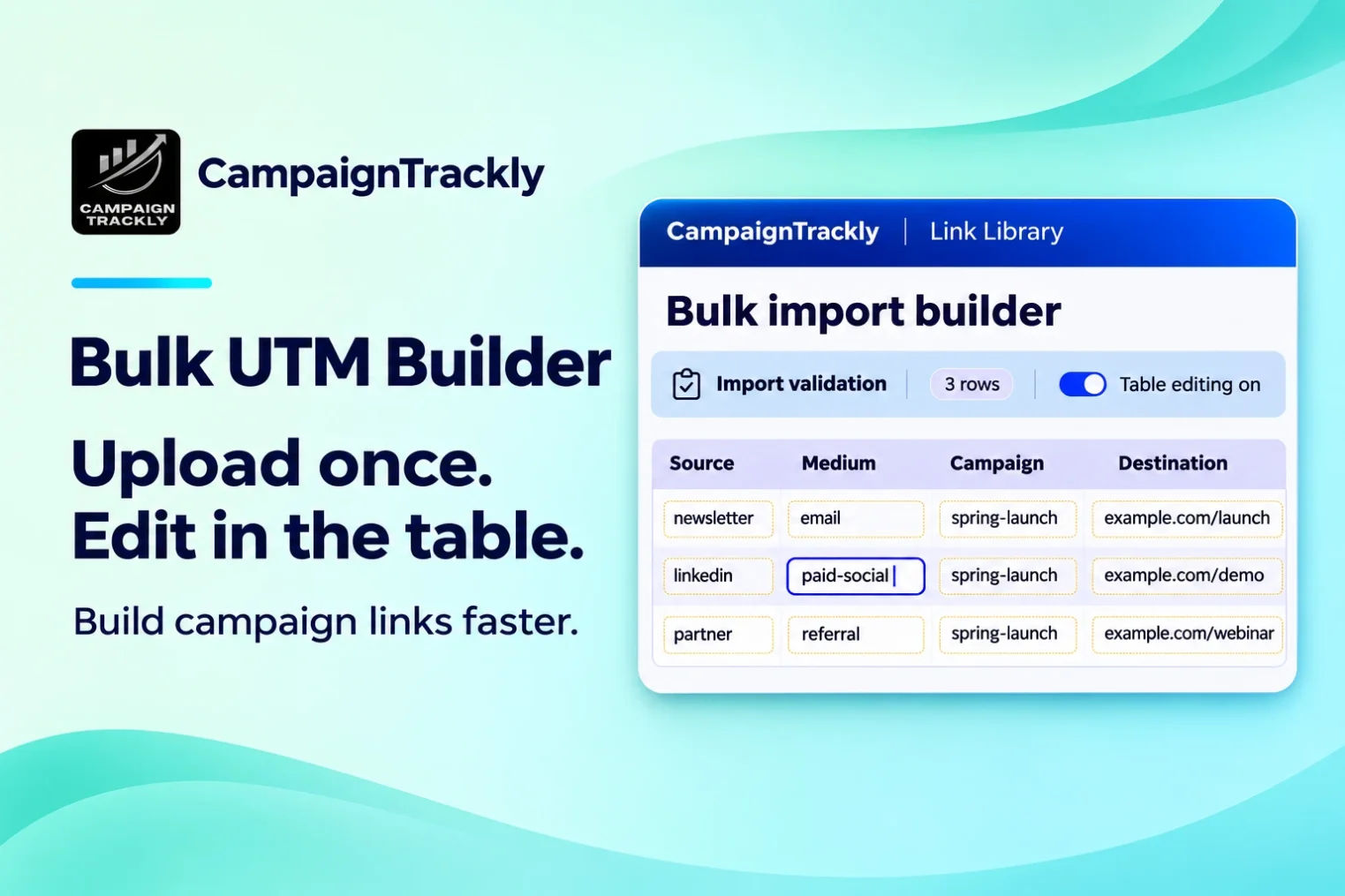
Smart bulk-upload UTM link generator saves time and keeps your data accurate
A busy marketing team may need links for several launches, regional campaigns, newsletters, and paid-media placements at the same time. Each campaign can have many links, with different channels, audiences, creative variations, and destinations.
CampaignTrackly’s bulk upload UTM link generator lets you bring that work together in one CSV upload.
On-click upload. Governed UTM links generated in Bulk.
Prepare the campaigns and their link rows in a spreadsheet, then let CampaignTrackly apply the library checks and match recognizable tag values to your approved governance values.
The goal is faster bulk tagging with less manual QA. Your team concentrates on the exceptions that need a decision while the builder handles the recognizable matches.
Many campaigns in one batch
Include multiple campaigns, each with its own tracking links, in the same CSV using the import format for your workspace.
Automatic tag matching
CampaignTrackly identifies recognizable values and corrects them to the corresponding approved tags in your governance libraries.
Focused exception review
Highlighted values show where a tag is missing from the library or the system cannot confidently identify the intended approved value.
Prepare one file for multiple campaigns
Start with the import template for your workspace. Add the destination URLs and the campaign and tracking fields that the template requires. Use the campaign field to identify which campaign each link belongs to. Different rows can belong to different campaigns, and several rows can belong to the same campaign.
For example, one upload can include email and paid-social links for a product launch, partner links for a webinar, and regional links for an event. You do not need to work through each campaign and link individually.
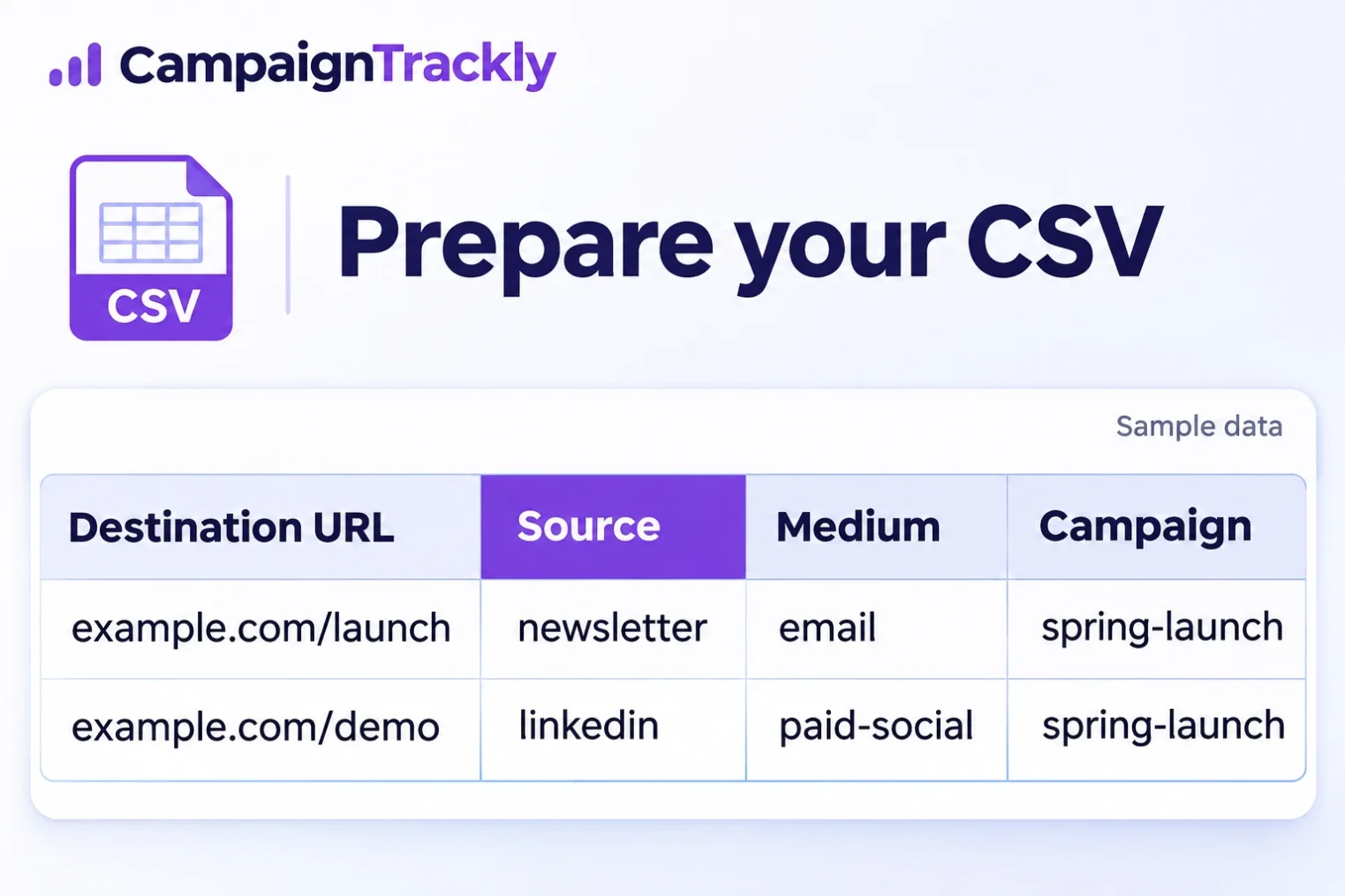
How the bulk upload UTM link generator speeds up tagging
Move from spreadsheet preparation to a governed batch of campaign links with an Excel-like editing experience inside the web app.
1. Prepare the campaigns
Use your workspace’s CSV template to list the campaigns and the links that belong to each one.
2. Upload the batch
Bring the CSV into CampaignTrackly so the campaigns and link rows can be processed together.
3. Let governance checks run
The uploader checks mapped tag values against the approved libraries for your import workflow.
4. Apply recognizable matches
Recognizable values are corrected to their approved library equivalents, reducing repetitive cleanup.
5. Review highlighted exceptions
Focus on values the system cannot find or confidently match. Edit the affected cells directly in the review table where supported.
6. Generate the tracking links
Resolve the remaining exceptions, then generate the final UTM tracking links across the campaigns in your batch.
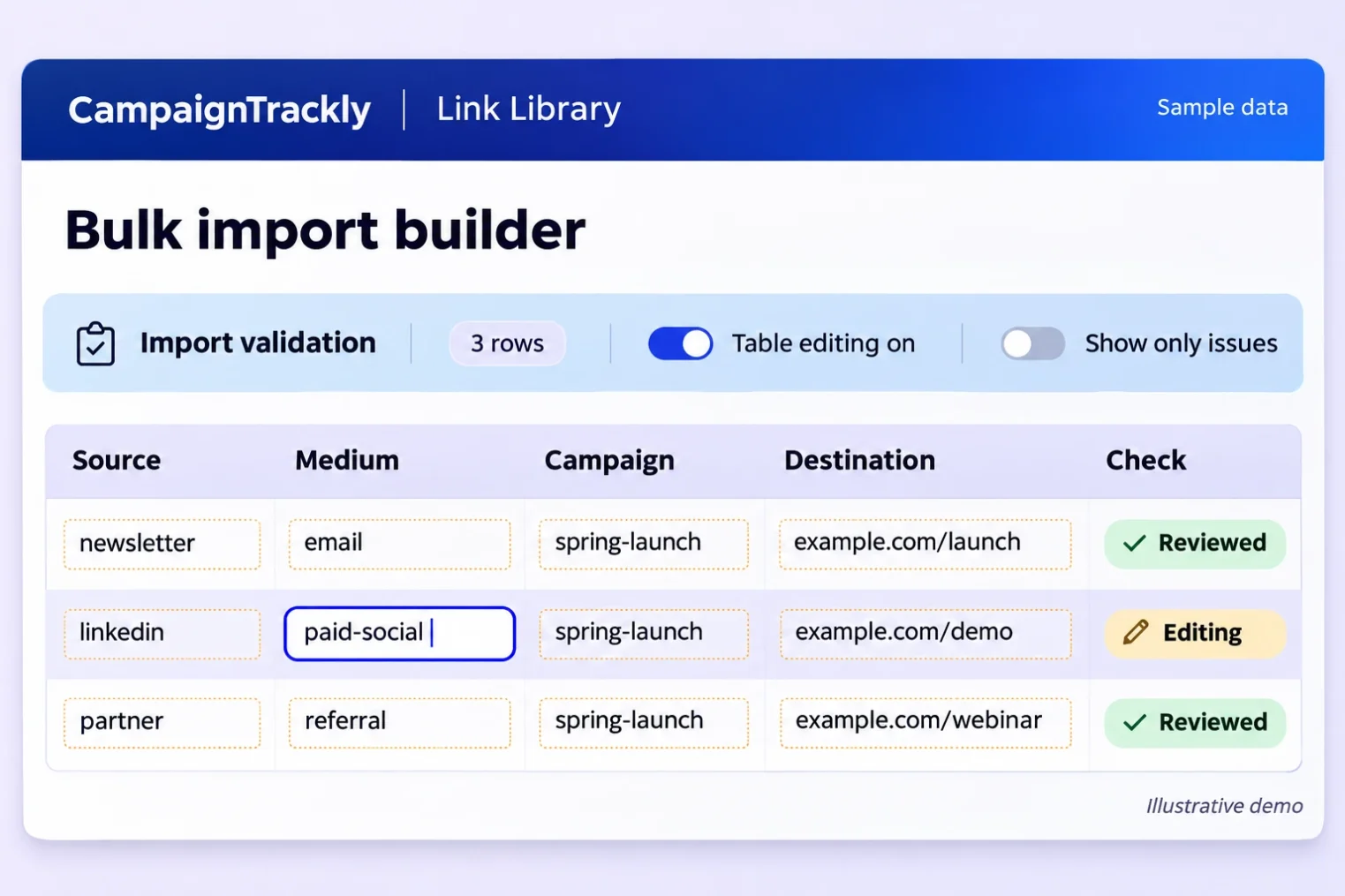
Automated tag governance reduces manual QA
Manually comparing every spreadsheet cell with an approved tag library is slow, especially when a batch spans many campaigns and channels. CampaignTrackly performs the matching work during upload processing.
When a recognizable input corresponds to an approved tag, the builder corrects it to that governed value. If the value does not exist in the library, or the system cannot confidently identify the intended match, it highlights the exception for your attention.
Spend review time on the exceptions
Use the highlighted rows to see which values need a decision. Correct the affected cells in the Excel-like table, or ask the library administrator to approve a genuinely new tag. Your available fields and editing controls depend on the import workflow and workspace permissions.
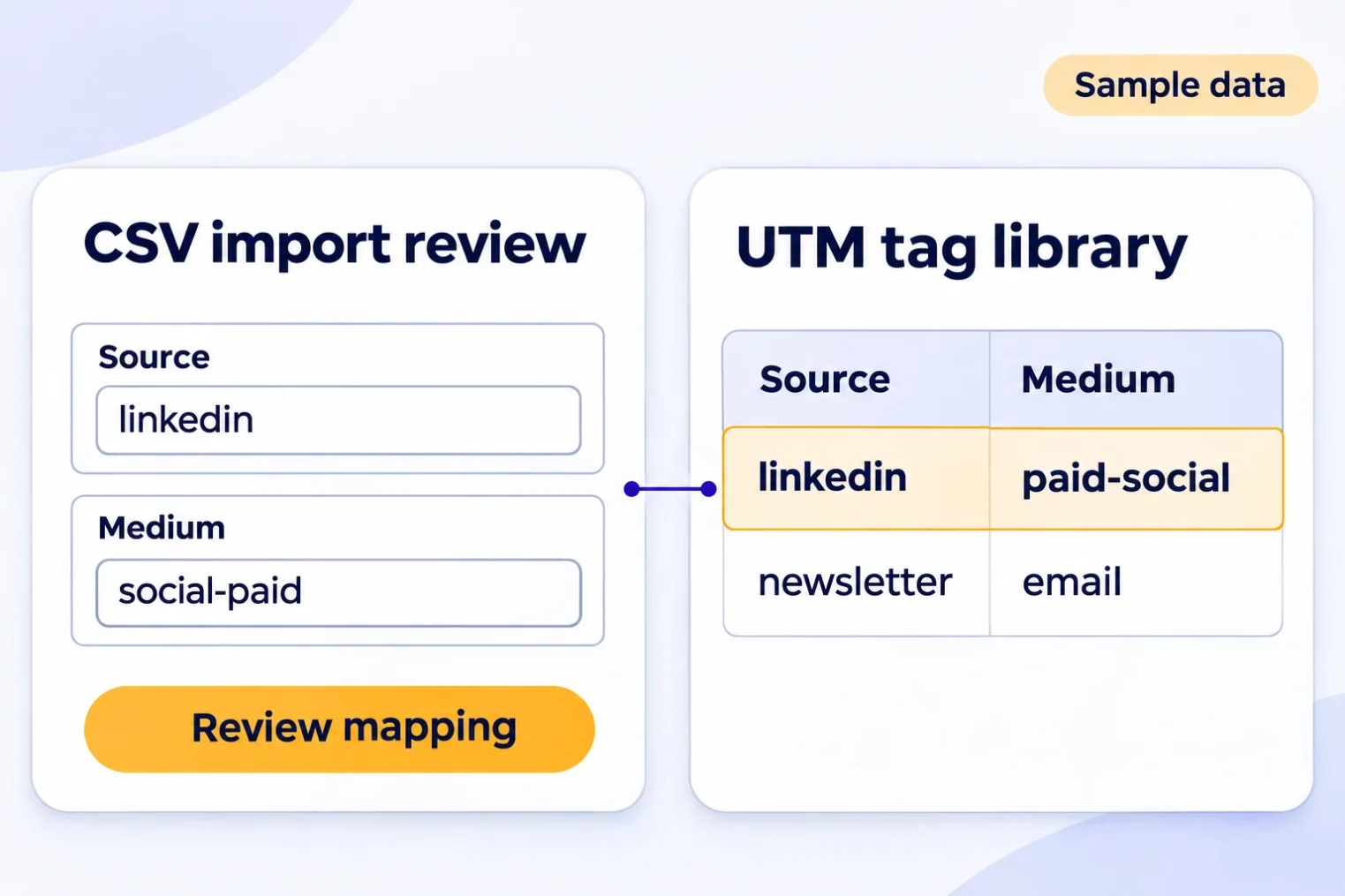
Keep governance consistent as the batch grows
The same approved vocabulary can support the campaigns in the upload. Your team spends less time reconciling spelling and naming variations, and channel owners receive links prepared around the shared governance rules.
For an individual finished URL, use the UTM checker. For a refresher on the tracking fields, see the UTM parameters guide.
What bulk link generation simplifies
| Work to do | How CampaignTrackly helps |
|---|---|
| Create links for several campaigns | Process multiple campaigns and their link rows together from one CSV. |
| Clean up recognizable tag variations | Match recognizable values to the approved tags in your governance libraries. |
| Find the values needing attention | Highlight tags that do not exist or cannot be confidently matched. |
| Correct the remaining exceptions | Edit supported cells directly in the web app’s spreadsheet-like review table. |
| Hand links to publishing teams | Save the campaign links after resolving exceptions so the batch can move forward. |
For agencies managing several campaigns
Prepare larger batches of campaign links in the appropriate client workspace and use the client’s approved libraries. Focus your review on exceptions before handing the links to the media or account team.
For enterprise teams building at scale
Give business units a shared import format and governed vocabulary. Automatic matching reduces repetitive cleanup across campaigns, while highlighted exceptions make it clear where a user or administrator needs to act.
MORE CAMPAIGNS. LESS REPETITIVE TAGGING.
See how much your team can handle in one upload
Bring a sample CSV with several campaigns and their links. We’ll show how bulk upload, automatic tag matching, and focused exception review simplify the work in your setup.
Comparing platforms? Use our free UTM marketing software comparison checklist to assess bulk tagging, governance, API limits, short links, QR codes, and connected workflows.
Bulk file upload and tracking link FAQs
Can the bulk upload UTM link generator create multiple campaigns in one upload?
Yes. The bulk upload UTM link generator can process one CSV file containing multiple campaigns with multiple links for each campaign. Use the import template for your workspace and identify the campaign associated with each link row.
How does the bulk UTM builder reduce manual QA?
CampaignTrackly checks tag values against the approved governance libraries, corrects recognizable inputs to their approved equivalents, and highlights exceptions. Your team can focus its review on values that do not exist in the library or cannot be confidently matched.
Does CampaignTrackly automatically correct tag values?
Yes. When the builder can identify the corresponding approved library value, it corrects the recognizable input to that governed tag. Values it cannot confidently match are highlighted for attention.
What should I do with a highlighted tag?
Review the value and choose the intended approved tag. If the tag is genuinely new, ask the person who manages the library to approve it. Inline editing is available in supported import workflows so you can correct the affected cells in the web app.
Can I prepare the upload in Excel or Google Sheets?
Yes. Use the import template for your workspace, prepare the campaigns and their link rows in Excel or Google Sheets, then export the sheet as a CSV for upload.
Can I edit the imported links in a spreadsheet-like table?
Yes. Supported import workflows provide an Excel-like review table with editable cells. Available fields and controls depend on the import format and workspace permissions.