Which Tags Are Standard Google Analytics Campaign Parameters?
The standard Google Analytics campaign parameters are utm_source, utm_medium, utm_campaign, utm_term, and utm_content.
These campaign parameters are simple combinations of prefixes and words added to the end of a marketing campaign URL. They are recognized by Google Analytics and used to identify where campaign traffic came from, which channel sent it, which campaign drove the visit, and which creative, or call to action was used.
This article is a simplified, practical explanation of the standard Google Analytics campaign parameters. For the broader strategy behind UTM setup, naming, and governance, read our full guide to UTM parameters.
The Short Answer: The 5 Standard Google Analytics Campaign Tags
The five standard Google Analytics campaign tags are utm_source, utm_medium, utm_campaign, utm_term, and utm_content. Most teams treat utm_source, utm_medium, and utm_campaign as the core required tags, while utm_term and utm_content are used for more detailed tracking.
The Standard Google Analytics Campaign Parameters Explained
Because Google Analytics recognizes campaign parameters only when they are added correctly to campaign URLs, it is important to understand how these tags are built and where they get placed.
These standardized “prefix+word” combinations help group traffic in analytics reports so marketers can analyze traffic performance across all promotions. This is how they work:
| Campaign Parameter | What It Identifies | Example Value |
|---|---|---|
utm_source |
The platform, publisher, website, email system, partner, or traffic source sending visitors to your site. | google, linkedin, newsletter |
utm_medium |
The marketing channel or delivery method used to send the traffic. | email, cpc, paid_social |
utm_campaign |
The campaign, promotion, launch, initiative, or marketing effort being tracked. | spring_sale, webinar_launch |
utm_term |
The paid keyword, audience, targeting group, or optional segmentation value. | brand_keyword, retargeting |
utm_content |
The creative, CTA, link placement, ad version, button, banner, or message variation. | blue_button, hero_banner |
What is the correct way to call them? Campaign Parameters = UTM Tags = Query Parameters
There are many names for the Google Analytics campaign parameters – tags, query parameters, utm codes – and they all refer to the same thing. In addition, today there are many custom parameters that companies use to enable more granular and detailed reporting.
When attached correctly, all these tracking codes send intelligence and demographic data to Google Analytics without changing the destination page.
Where Do the Standard Google Analytics Campaign Parameters Go?
How Do You Add the Campaign Parameters to a URL link?
In order to preserve the health of your link and prevent it from breaking when you use tracking parameters, you always add a question mark at the end.
Then you attach the tracking snippets, making sure you follow the established format for each of them. Also, you always add ampersand (
&)at the end of each parameter to separate it from the next.
Simple UTM Link Example
- Start with a URL: https://www.google.com/
- Add a question mark (?) – only once!
- Add parameters:
utm_source=facebook&utm_medium=paid&utm_campaign=spring_sale
Final link: https://www.google.com?utm_source=facebook&utm_medium=paid&utm_campaign=spring_sale
👉 For a full breakdown, visit: UTM Tags Explained
Visual: when you open a tagged url, thanks to the (?) at the end, your destination page is unchanged and healthy — despite the tracking snippet now attached to it.
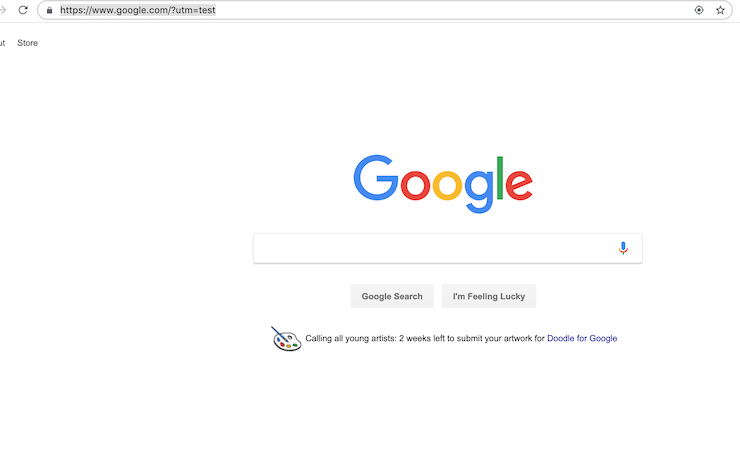
Important: If you do NOT include the “?” before you add your parameters, the URL will break.
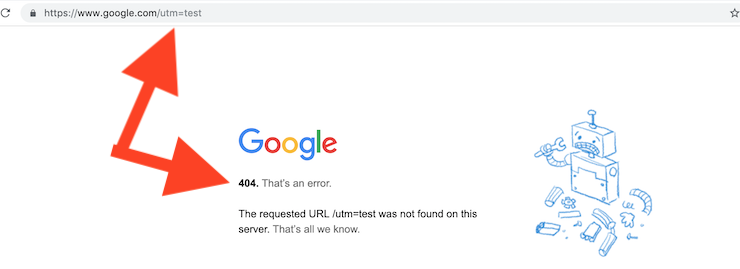
Google Analytics UTM Parameters need to be added with a specific “?” added at end of your link before you include the parameters or you will break your link
Why UTM Parameters Matter
When used correctly, UTM parameters allow you to:
- Track campaign performance accurately
- Identify high-performing channels
- Reduce wasted marketing spend
- Discover new audience behaviors
Stop "Direct" Visits from Stealing Your Campaign Traffic
Latest Changes in the Standard Google Analytics UTM Parameters
Google Analytics’ latest version – GA4 recognizes several new parameters in addition to the five standard ones:
NEW
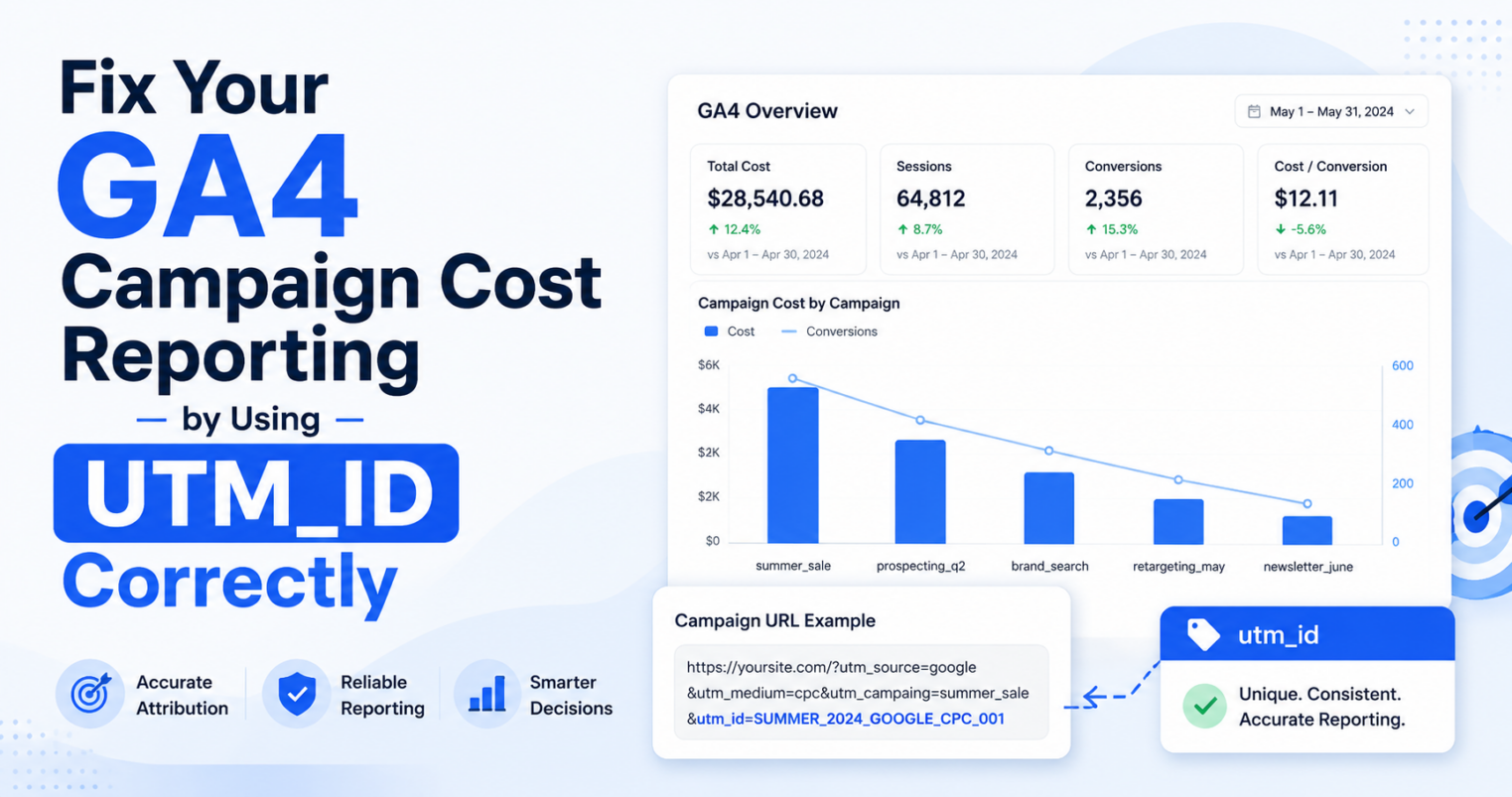
- utm_id – a MUST for tracking effectively paid campaigns
- utm_source_platform – Denotes the platform that sent the traffic, such as “google_ads,” or “facebook”.
- utm_creative_format – Helps differentiate “video,” vs “search”.
- utm_marketing_tactic – Identifies the strategy of the campaign, like, “prospecting” or “remarketing”.
TRADITIONAL
- utm_campaign – Defines your campaign name
- utm_source – Identifies where traffic comes from (e.g., facebook.com)
- utm_medium – Defines the channel (email, social, paid, etc.)
- utm_content – Differentiates content variations (e.g., button vs banner)
- utm_term – Tracks keywords or variations
Important Rules to Remember
- Google Analytics does NOT generate UTM tags automatically
- You must build them manually or use a campaign url builder tool
- Do NOT use UTMs on internal links (only external traffic)
- Always include “utm_” in the standard parameter names
- Incorrect formatting can break reporting or data accuracy
Why Manual UTM Tagging Is Challenging
Building tracking links manually can quickly become complex:
- You must remember correct formatting
- You need consistent naming conventions
- Errors can break reporting or misclassify traffic
- Duplicate naming leads to messy analytics
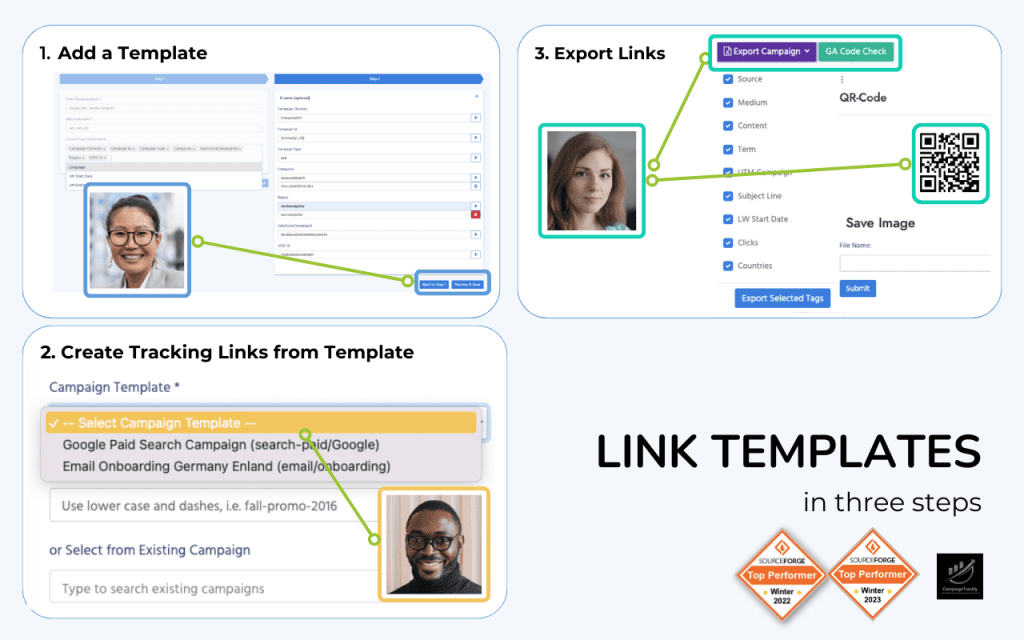
This is why many teams use tools like a campaign URL builder to automate tagging and ensure consistency.
Pre-Launch Tool
Free 3-Minute GA4 UTM Campaign Tracking QA Checklist
Don’t launch with broken tracking. Use this quick 3-minute guide to validate your UTM parameters and ensure 100% accurate attribution.
The QA Checklist Covers:
👉 Get the 3-Minute QA Checklist
Stop “Unassigned” traffic before it starts.
Where You See UTM Data in Google Analytics
We have a detailed guide to help you learn how to find campaign parameters in your Google Analytics platform.
But here is a quick reference to one of the many reports in GA4 that provide you with campaign tracking insights:
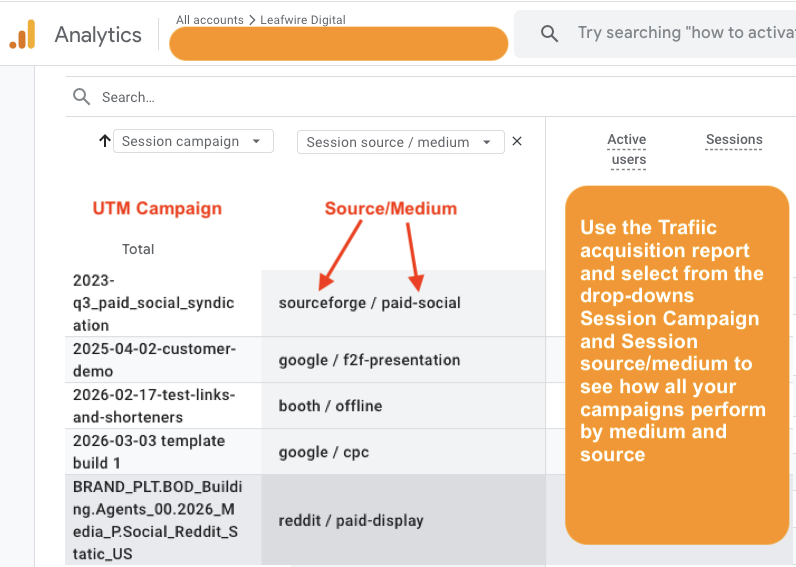
This GA4 report shows you how your google analytics utm parameters can be used for reporting on your marketing campaigns
Custom Campaign Parameters (Advanced)
Google Analytics also allows custom tracking parameters using custom dimensions.
Examples:
- utm_region – Track performance by geographic region
- utm_category – Group campaigns by brand or business unit
Conclusion
Google Analytics traditionally has advocated for and supported five standard campaign analytics tracking parameters that have seen significant adoption among organizations of all types and sizes. But as digital marketing matures and businesses’ analytics needs evolve, it has added several new denominations to support more granular reporting and has provided many more options to drive intelligence using these invaluable tracking codes. Find more information about GA4 reporting here.
Q&As
What campaign parameter is not available by default in Google Analytics?
Utm_adgroup is not available by default as a standard Google Analytics campaign parameter. The standard campaign parameters are utm_source, utm_medium, utm_campaign, utm_term, and utm_content.
Which formats may be used to add a custom campaign parameter to a URL?
Custom campaign parameters are added to a URL using a parameter=value format. For example, ?utm_campaign=fall_sale can be added after the landing page URL. If the URL already has one parameter, additional parameters are added with an ampersand, such as &utm_source=google&utm_medium=cpc.
Which campaign parameter is not standard in google analytics ?
This is a trick question, so if you see “utm_name” know that this parameter actually does not exist. The correct parameter is utm_campaign. If you see utm_placement – this is definitely not a parameter used by Google Analytics. if you are actually asking about paid macro parameters, you can learn more here.