Less Clutter, More Focus: How to Simplify Your GA4 UTM Builder in Just a Few Clicks
🛠️ The Power of Admin Control: Customizing the Experience
As an admin or workspace owner, you hold the keys to your team’s workflow efficiency. Under your Team Settings panel, you can now universally toggle visibility rules on and off, watching the changes update live on the user side.
1. Choose Your Builder View
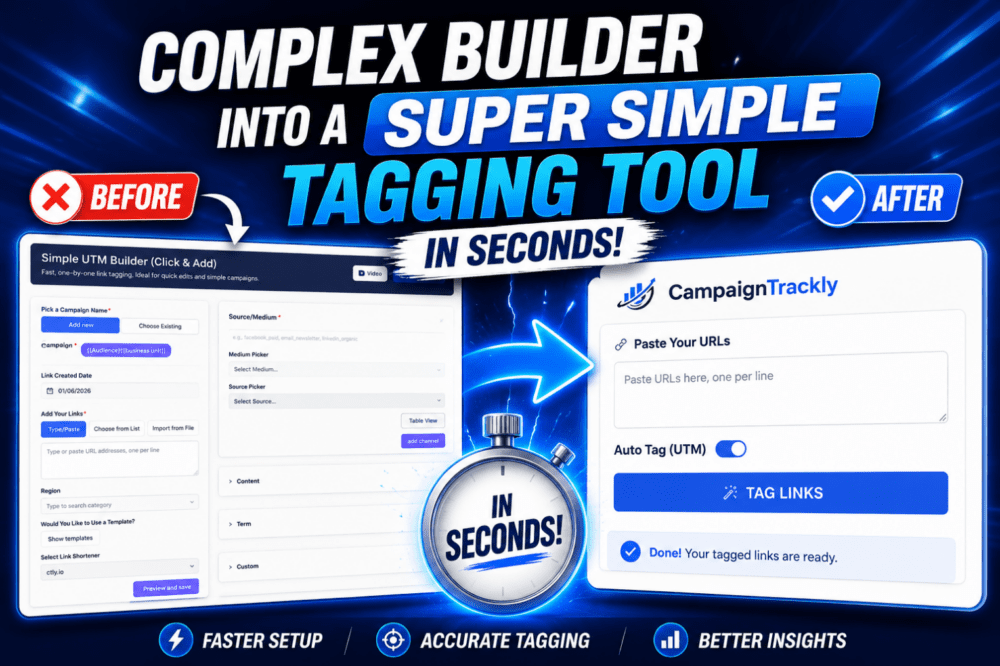
Not every user needs a heavy dashboard setup. You can hide the “Advanced UTM Builder” completely and restrict your team’s view to the Simple UTM Builder. This instantly clears visual clutter and keeps them focused entirely on the essentials.
2. Hide Unnecessary Custom Fields
Does your team really need to see every single tag, category, or region box? If they don’t use it, hide it. Toggling off features like Custom Tags, Campaign Categories, or specific Campaign Labels instantly drops those boxes from the user’s builder form.
3. Streamline Content Inputs
You can choose to show or hide advanced input modes like Type Link Input Mode, Upload Input, or Select Existing Input Mode. If your team only needs a straightforward link pasting feature, you can turn off the rest to keep the page layout beautifully clean.
4. Trim the Main Menu
Keep your users focused on building links rather than wandering through dashboard menus. You can seamlessly hide complex navigation choices from non-admin members, including:
- Admin Settings
- Billing & Plans
- Setup Tutorials & Documentation
The Result: Your team opens up the app and sees only the exact fields they need to fill out. No confusion, no unnecessary clicks—just a fast, error-free link generation experience.
🚀 Why This Matters For Your Team
- Faster Onboarding: New team members won’t get overwhelmed by complex, optional configuration settings.
- Higher Data Accuracy: By removing unused fields, you eliminate the risk of users entering incorrect or rogue metadata.
- Better User Adoption: A clean, intuitive tool is a tool your team will actually enjoy using every day.
Ready to simplify your workspace?
Log into your admin dashboard today, head over to Team Management, and start tailoring the perfect, distraction-free builder experience for your team!
Login to CampaignTrackly and Configure Your Team Settings Today