ChatGPT UTM Builder: Generate Clean Tracking Links Fast with CampaignTrackly
The CampaignTrackly ChatGPT plugin (powered by MCP) brings governed campaign link creation directly into your ChatGPT workflow.
The CampaignTrackly ChatGPT plugin (powered by MCP) brings governed campaign link creation directly into your ChatGPT workflow. Connect your CampaignTrackly workspace, select your team’s approved UTM tags or campaign templates, validate the generated URLs, and save them directly to your campaign records.
For marketing teams already using ChatGPT to plan launches, write ad copy, and organize multi-channel campaigns, this eliminates manual spreadsheet tagging—ensuring every tracking link matches your organization’s campaign tracking framework before launch.
Open CampaignTrackly AI UTM Builder in ChatGPT →
Watch how to generate governed UTM links inside ChatGPT in 60 seconds.
What Does the CampaignTrackly ChatGPT Plugin Do?
Unlike standard AI prompts that guess parameter formats, the CampaignTrackly ChatGPT plugin uses the Model Context Protocol (MCP) to connect directly to your authorized workspaces. It retrieves your team’s approved tracking choices and templates, then applies CampaignTrackly’s validation rules to generate clean, error-free GA4 campaign URLs.
With this ChatGPT UTM builder, you can:
- Build individual UTM tracking links for landing pages, email newsletters, paid ads, and social posts.
- Generate UTM links in bulk by pasting multiple destination URLs or uploading a CSV file.
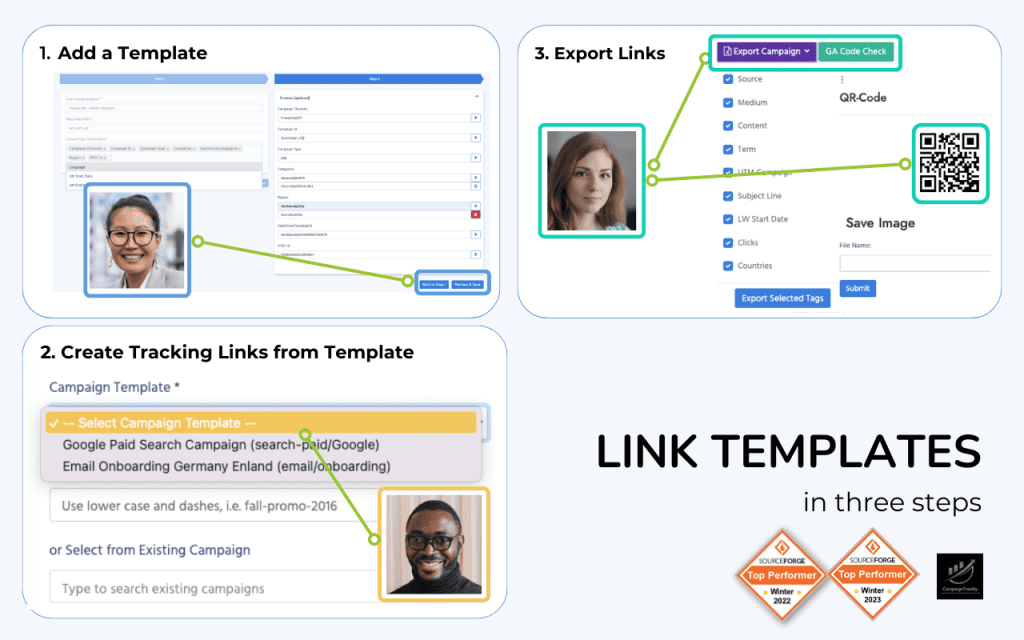
- Apply approved campaign templates that pre-fill required parameters and enforce naming conventions.
- Create new campaigns or append links to existing ones based on your workspace permissions.
- Preview, validate, and save links directly into CampaignTrackly with an explicit confirmation step.
The interactive form builder inside ChatGPT lets you combine natural-language requests with structured dropdown selections—giving you both AI speed and strict tag governance.
Why Governed UTM Tags Matter in AI Workflows
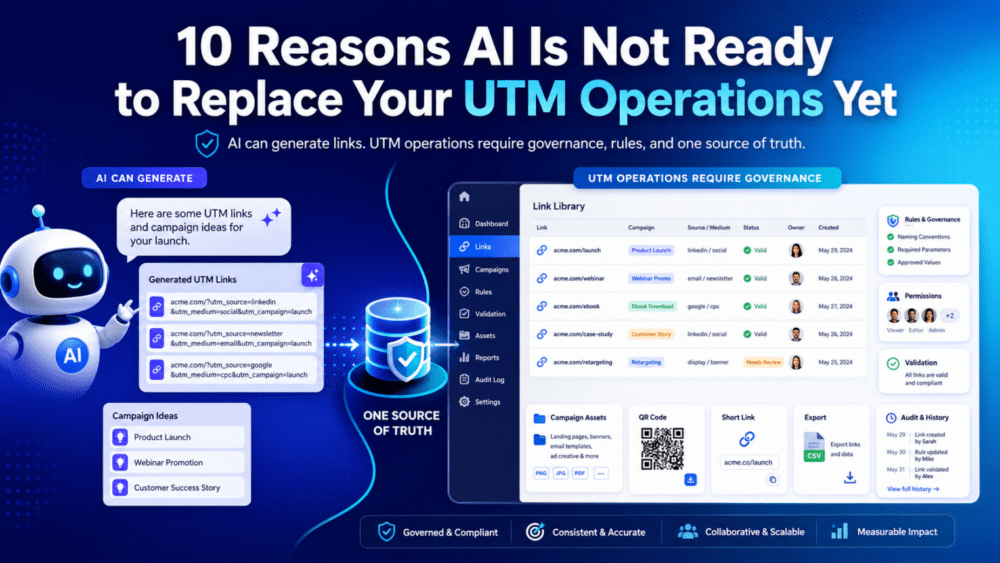
Modern campaigns span multiple contributors, ad platforms, and creative variants. Without enforced rules, asking standard ChatGPT to “create UTM links” often introduces silent analytics errors—such as mixing uppercase and lowercase values (LinkedIn vs. linkedin) or inventing non-standard utm_medium labels.
As Google’s GA4 campaign URL documentation explains, UTM parameters are strictly case-sensitive. A single capitalization mismatch splits traffic across separate rows in your acquisition reports.
| Feature | Standard ChatGPT Prompting | CampaignTrackly ChatGPT Plugin (MCP) |
|---|---|---|
| Naming Conventions | Guesses formats; prone to casing drift | Enforces workspace-approved tags & rules |
| Templates & Custom Fields | Must be manually explained every chat | Pulls live templates and custom parameters |
| Bulk Link Creation | Manual copy-paste with risk of truncation | Supports pasted URL lists and CSV imports |
| Link Storage & Audit Trail | Lost in chat history unless copied out | Saves validated links directly to CampaignTrackly |
For agencies managing multiple client accounts, switching workspaces automatically loads that specific client’s approved taxonomy. For enterprise marketing operations teams, it extends existing UTM governance directly into daily AI workflows.
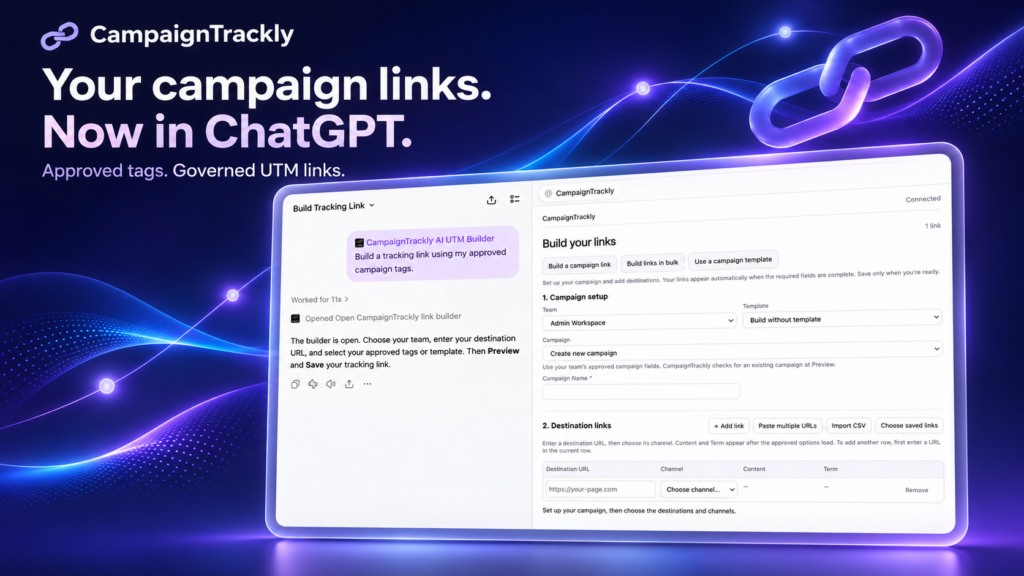
CampaignTrackly’s Chat GPT Plugin: Build UTM Links Fast
How to Use the CampaignTrackly ChatGPT Plugin
Prerequisites: You need a ChatGPT account and an active CampaignTrackly Shared V2 workspace. If your team operates on a Legacy plan, contact CampaignTrackly support to check workspace compatibility.
Step 1: Open the Plugin Listing in ChatGPT
Visit the CampaignTrackly AI UTM Builder listing in the ChatGPT Plugins directory and follow the prompts to add or connect it to your workspace.
Step 2: Authorize Your CampaignTrackly Account
Sign in and approve the connection. If you manage multiple brands or client accounts, verify that you authorize the specific CampaignTrackly account containing the workspaces you want to access.
Step 3: Start a Chat with a Link-Building Prompt
Select the CampaignTrackly AI UTM Builder in ChatGPT and enter a prompt such as:
Build a tracking link using my approved campaign tags for https://example.com/product-launch.
If your account includes multiple teams, select the target workspace when prompted.
Step 4: Select a Campaign Template and Destination
Choose an existing campaign template—or build from scratch—and specify whether to create a new campaign or add links to an existing one. Complete the required fields (such as utm_source, utm_medium, campaign name, content, term, or custom tags) using your team’s approved dropdown values.
Step 5: Bulk Import URLs (Optional)
To tag multiple landing pages at once, use the builder’s pasted-URL input, CSV import, or saved-destination controls. Review the assigned channel and parameter values across every row before generating previews.
Step 6: Validate and Save Your Tracking Links
Generate a link preview to inspect the final URLs and resolve any validation warnings. Previewing does not write data to your account—click Save and wait for the confirmation message to store the links in CampaignTrackly.
Tip: If a Save request times out or is interrupted, check your campaign inside CampaignTrackly before re-submitting to prevent duplicate entries.
Step 7: Export Saved Links
Once saved, select eligible links and trigger the export action to open CampaignTrackly’s web export workflow (subject to your user permissions and link approval status).
Real-World Example: Tagging a Multi-Channel Webinar Launch
Suppose you are launching a B2B webinar across email, paid LinkedIn ads, and partner social posts. Instead of manually assembling 12 URLs in a spreadsheet, open the CampaignTrackly ChatGPT plugin, select your webinar campaign template, and paste your registration and thank-you page URLs.
Because the MCP integration reads your live workspace rules, every link inherits the exact utm_campaign format and approved channel tags your analytics team expects—and saves directly to your existing webinar campaign record.
Copy-and-Paste ChatGPT Prompts for Building UTM Links
Select the CampaignTrackly AI UTM Builder plugin in ChatGPT and try any of these ready-to-use prompts (replace the bracketed details with your own):
- Build a single tracking link:
Build a UTM tracking link for [https://yourdomain.com/landing-page] using my approved campaign tags.
- Generate links in bulk from a URL list:
Help me build tracking links in bulk from these destination URLs using our approved channel tags: [paste 3–10 URLs].
- Use a saved campaign template:
Show me the campaign templates available in my CampaignTrackly workspace and help me build links with one.
- Add links to an existing campaign:
Find my existing campaign named “[Campaign Name]” in CampaignTrackly and add a new paid social tracking link for [https://yourdomain.com/offer].
- Multi-channel launch prep:
I’m launching a new product page at [https://yourdomain.com/new-feature]. Help me prepare governed UTM links for email, LinkedIn, and Google Ads using our workspace rules.
Frequently Asked Questions
Do I need developer skills or custom MCP server setup to use this plugin?
No. No coding or server configuration is required. Simply open the published listing in the ChatGPT Plugins directory, sign in to your eligible CampaignTrackly workspace, and start building links through the interactive form.
Does editing a tag in ChatGPT automatically save the link?
No. Adjusting tags updates the live preview only. Links are stored in your CampaignTrackly workspace only after you click Save and receive a confirmation.
Can I enforce my team’s existing UTM naming conventions?
Yes. All dropdown choices, required fields, templates, and validation rules are pulled directly from your selected CampaignTrackly workspace.
Does the ChatGPT plugin generate short links or analytics reports?
The plugin focuses on generating and validating full UTM tracking URLs. Short-link generation and post-launch campaign reporting remain inside the main CampaignTrackly web platform.
Bring Governed UTM Link Building Into ChatGPT
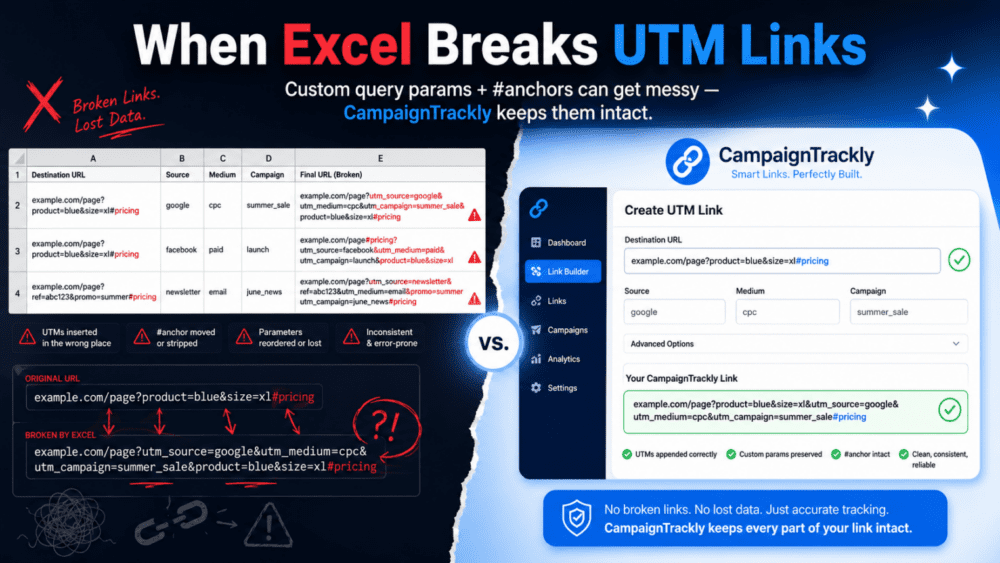
Stop fixing broken UTM parameters after launch. Connect the CampaignTrackly ChatGPT plugin to generate, validate, and save compliant campaign links in seconds.
Add CampaignTrackly AI UTM Builder in ChatGPT →
New to CampaignTrackly? Explore our automated UTM governance platform or book a workflow walkthrough.