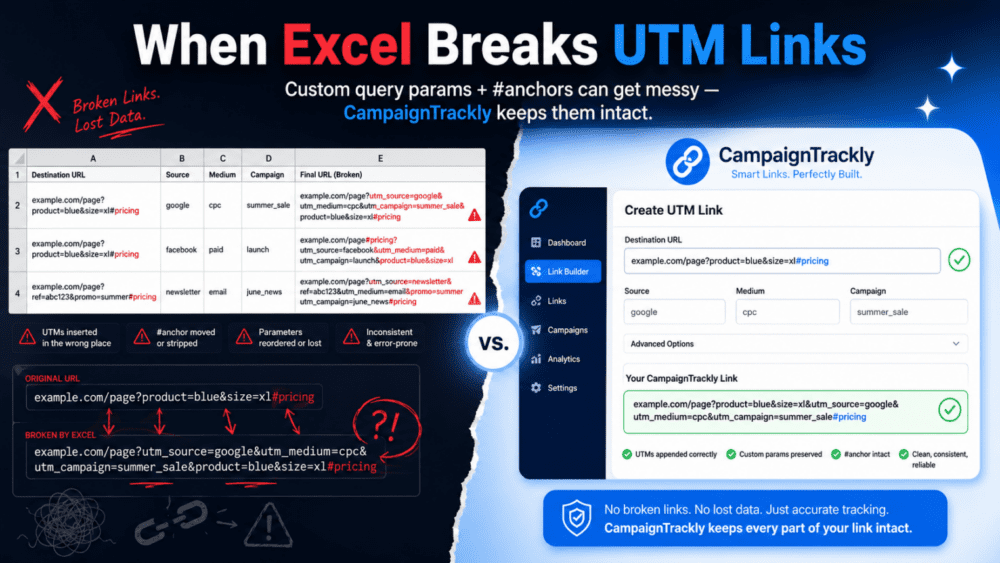
Why Excel Formulas Break UTM Links with #Anchors
Adding UTM tags to a URL that contains an anchor (also known as a fragment identifier or a hashtag, like #pricing or #features) is one of the most common traps in digital marketing.
The Glitch: What Happens to a URL with a hash query in an Excel Concatenate Formula
If not set up with a very special formula, your spreadsheet won’t know how to handle links with queries and you will either break the webpage for your users or completely destroy your tracking data.
Here is the golden anchor placement rule, the technical explanation of why it happens, and how to format them correctly.
The Anchor Placement Rule: Where Queries Must Sit in a URL String
The hashtag (
#) must always go at the very, very end of the URL. Any UTM parameters (like?utm_source=...) must be placed before the hashtag.
❌ The Wrong Way (The Excel/Manual Mistake)
If you just slap UTM tags onto the end of your link, it looks like this:
https://www.example.com/#pricing?utm_source=linkedin&utm_medium=social
- Why this fails: Browsers treat everything after the
#as part of the anchor. The browser will look for a section on your page namedpricing?utm_source=linkedin..., won’t find it, and your Google Analytics will completely miss the UTM data because it never gets sent to the server.
The Fix: A Google Sheets and Excel Formula that Handles Hashtags Safely
The UTM parameters must be injected between the main URL and the anchor:
https://www.example.com/?utm_source=linkedin&utm_medium=social#pricing
- Why this works: The browser reads the page path, processes the tracking data after the
?, and then successfully jumps the user down to the#pricingsection of the page.
Anatomy of a Correct Anchor URL
To make sure your links never break, structure them using this specific hierarchy:
| Order | URL Component | Example |
|---|---|---|
| 1 | Base URL | https://www.example.com/ |
| 2 | Query Introduction | ? |
| 3 | UTM Parameters | utm_source=linkedin&utm_medium=social |
| 4 | Anchor Tag | #pricing |
Full Correct Result: https://www.example.com/?utm_source=linkedin&utm_medium=social#pricing
How to Safely Build These Links
Because standard spreadsheet formulas and basic link-building tools usually just append text to the end of a cell, they naturally default to the incorrect format. To prevent this, you have three options:
1. Use the Official Google DevTools Campaign URL Builder
Google’s official Dev Tools Link Builder handles anchor tags natively. If you type https://www.example.com/#pricing into the website field, the tool is smart enough to automatically strip the anchor, insert your UTMs, and append the #pricing back to the very end of the generated link.
The disadvantage?
Everything is manual – a lot of copy-pasting, no options to save your tags, and it is not very efficient when you have to build more than a handful of links.
2. Build a Smart Spreadsheet Formula
If you are using Excel or Google Sheets to build your links, you cannot just use a basic string concatenation (like A2 & B2). You need a formula that looks for a #, splits it, and re-orders it.
In Google Sheets, a formula to handle a base link in cell A2 and a UTM string (starting with ?) in cell B2 looks like this:
=IF(REGEXMATCH(A2, "#"), REGEXREPLACE(A2, "#(.*)", "") & B2 & "#" & REGEXEXTRACT(A2, "#(.*)"), A2 & B2)(This checks if a hashtag exists, chops it off, drops the UTMs in, and glues the hashtag back onto the end).
The disadvantage?
It’s brittle and highly vulnerable to human error (lack of scale).
While the formula works perfectly for a standard domain.com/#anchor URL structure, it quickly breaks down or requires massive manual maintenance in real-world marketing environments for several reasons:
1. It breaks if the URL has pre-existing parameters
If someone inputs a URL that already has a query parameter before the hashtag (e.g.,
example.com/page?id=123#pricing), your UTM stringB2(which starts with a?) will be glued right next to it. This creates a broken URL with two question marks (example.com/page?id=123?utm_source=...), which destroys both the tracking data and the website functionality.2. Lack of input governance (User Error)
Formulas depend entirely on perfect data entry. If a teammate builds a link and forgets to put the
?at the beginning of their UTM string in cellB2, or if they accidentally include a trailing slash after the anchor tag (#pricing/), the formula won’t know how to clean it up. It blindly glues the text together, leading to silent tracking failures.
3. Use Advanced URL Campaign Management Tools
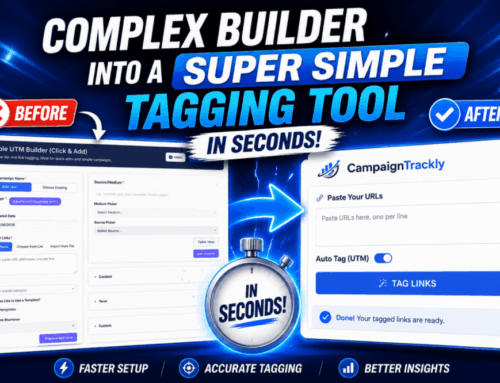
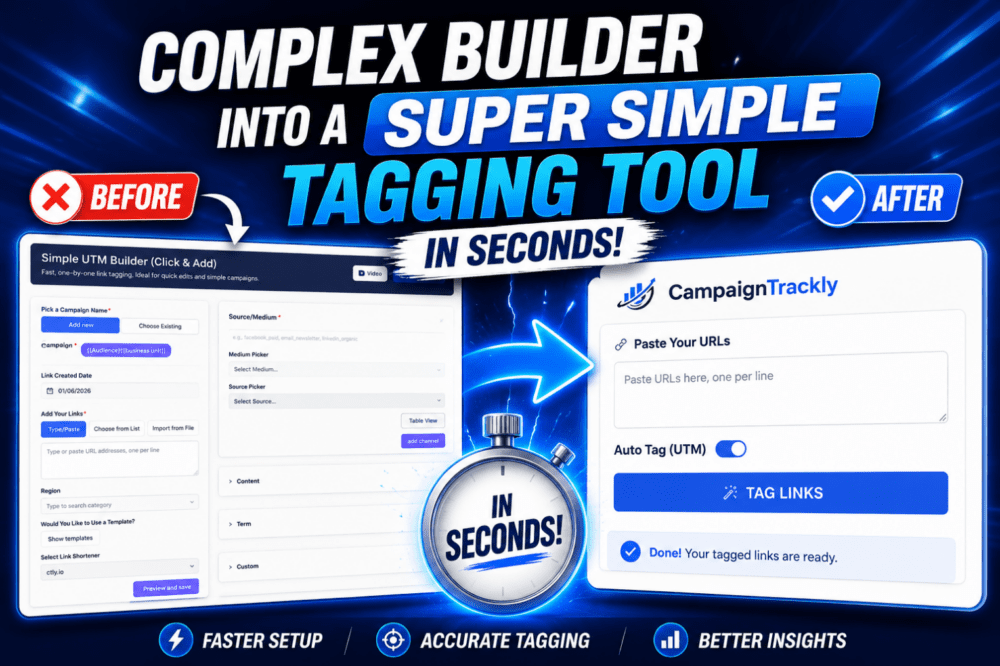
Advanced UTM builder platforms (like CampaignTrackly, which specializes in this exact issue, as seen in this short video) automatically detect fragments, split the URL string, inject the tracking parameters correctly, and re-attach the anchor. This eliminates manual human error if you are building links at scale.
The main advantage of using an advanced URL campaign management tool is automated compliance and bulletproof operational scale.
While it saves time, its real business value lies in protecting your marketing data integrity and user experience without requiring your team to be technical experts.
1. Centralized Governance & Taxonomy Enforcement
Spreadsheets allow users to type whatever they want, leading to messy data (e.g., one teammate writing
utm_source=linkedinand another writingutm_source=Linkedinor2. Bulk Generation Without Performance Lag
If you need to generate tracking links for 500 different destination URLs across 5 different social channels, trying to drag down a complex regex formula in Excel or Google Sheets will often crash the program or take ages to calculate. An enterprise tool processes bulk uploads in seconds and automatically handles variations across every single link instantly.
3. Native URL Shortening and Meta-Tagging
Most advanced builders don’t just fix the link syntax; they natively connect to shorteners in the exact same workflow step. Instead of copying a correctly structured link out of a spreadsheet and pasting it into a separate shortener, the tool structures the long URL correctly, shortens it, checks it for security, and attaches it to your campaign dashboard all at once.
How CampaignTrackly Automatically Fixes URL String Fragments
Instead of relying on rigid, error-prone spreadsheet formulas, CampaignTrackly’s intelligent parsing engine automatically detects page hashtags, dynamically isolates them, sequences your UTM parameters using the correct syntax separators, and safely re-attaches the anchor to ensure flawless user navigation and 100% accurate analytics.