
How to View Campaign Performance in GA4 – Quick and Easy Guide
If you are trying to view campaign performance in GA4, the best place to start is the Traffic acquisition report. This report helps you analyze how campaigns, sources, mediums, and channels contribute to sessions, engagement, and key events.
This guide shows you how to find campaign data in GA4, how to use the Session campaign dimension, how to add Session source / medium, and how to review campaign metrics without confusing session reporting with first-user acquisition reporting.
Need the basics first? If you want to understand what utm_campaign means, how to name campaign values, or how campaign parameters work, read our separate guide on what utm_campaign is.
Quick Answer: Where Do You See Campaign Performance in GA4?
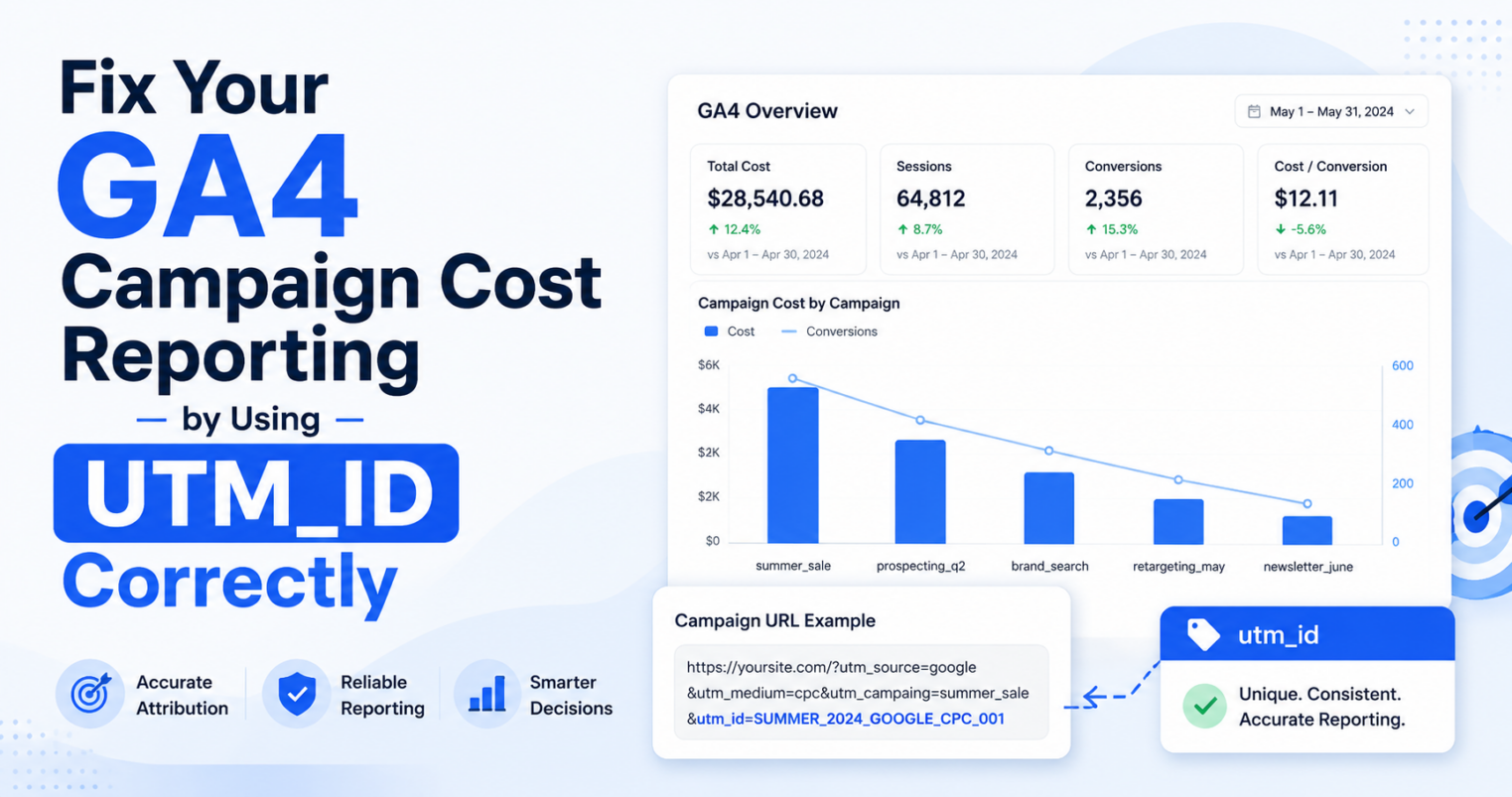
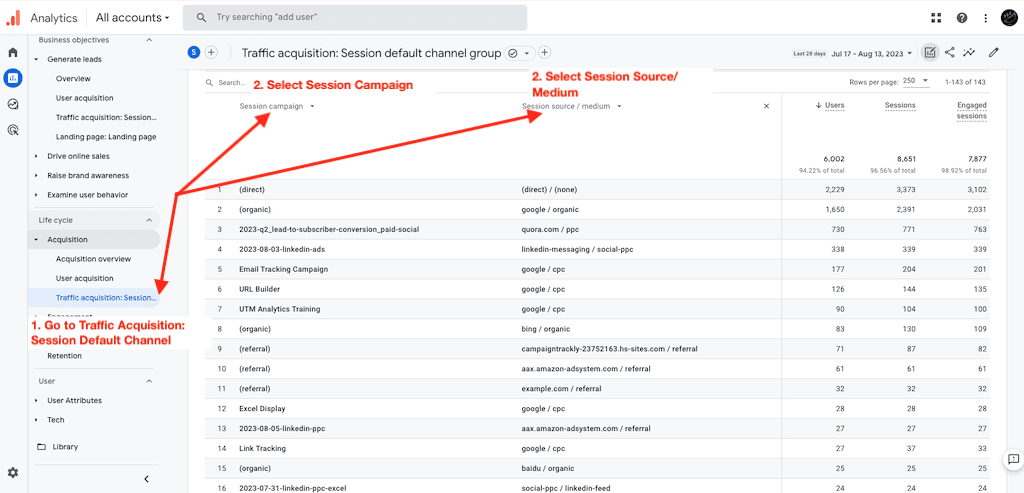
To view campaign performance in GA4, go to Reports → Acquisition → Traffic acquisition. Then change the primary dimension to Session campaign. To understand which channel or platform drove the campaign, add Session source / medium as a secondary dimension.
GA4 Campaign Reporting: Session Campaign vs First User Campaign
Before you analyze campaign performance in GA4, you need to choose the right campaign dimension. GA4 gives you several campaign-related dimensions, but two of the most useful are Session campaign and First user campaign.
| GA4 Dimension | What It Shows | Best Use Case |
|---|---|---|
| Session campaign | The campaign associated with a specific visit or session. | Use this when you want to analyze recent campaign performance, traffic quality, engagement, and key events. |
| First user campaign | The campaign that first brought the user to your website or app. | Use this when you want to understand first-touch acquisition and which campaign originally introduced the user to your brand. |
Campaign Performance in GA4: Getting Started with Session Campaign
For most day-to-day marketing reporting, start with Session campaign. It is usually the better choice when you want to understand which current campaigns drove visits, engagement, and key actions during a selected reporting period.
How to View Campaign Performance in GA4 in 3 Steps
The following steps show you how to find campaign performance in GA4 using the standard acquisition reports.
Step 1: Open the GA4 Traffic Acquisition Report
In GA4, go to Reports → Acquisition → Traffic acquisition. This report shows how users arrived at your website or app during a selected reporting period.
By default, GA4 may show traffic by channel group, such as Organic Search, Paid Search, Direct, Referral, Email, or Paid Social. To analyze individual campaigns, you need to change the report dimension.
Step 2: Change the Primary Dimension to Session Campaign
Inside the Traffic acquisition report, change the primary dimension to Session campaign. This allows you to view campaign-level performance instead of only seeing broad traffic channels.
If you are looking for a specific campaign, use the report search field to filter the table by campaign name. This makes it easier to isolate one campaign and review its performance without scrolling through every campaign row.
Step 3: Add Session Source / Medium to the GA4 Campaign Performance Report
Once you are viewing the report by Session campaign, click the blue plus icon to add a secondary dimension. Choose Session source / medium.
This gives you a much clearer view of campaign performance because you can see not only the campaign name, but also the source and medium that drove the session. For example, you may be able to compare the same campaign across email, paid search, paid social, partner referrals, or other channels.
How to Analyze Campaign Performance Metrics in GA4
| GA4 Metric | How It Helps You Evaluate Campaign Performance |
|---|---|
| Users | Shows how many people visited from the campaign. |
| Sessions | Shows how many visits the campaign generated. |
| Engaged sessions | Helps you understand whether campaign traffic stayed long enough or interacted meaningfully. |
| Engagement rate | Shows the percentage of sessions that met GA4 engagement criteria. |
| Average engagement time | Helps you understand whether visitors spent meaningful time with your content. |
| Events per session | Shows whether campaign visitors interacted with your site after arriving. |
| Key events | Shows whether the campaign drove important actions such as sign-ups, form fills, downloads, purchases, demo requests, or other business outcomes. |
| Revenue | Helps ecommerce or monetized sites connect campaign traffic to business value. |
How to Review Key Events by Campaign in GA4
Users and sessions are useful, but they do not tell the full campaign story. To understand campaign value, review key events by campaign.
Key events help you see which campaigns drove meaningful actions. Depending on your GA4 setup, these actions may include form submissions, account sign-ups, app registrations, file downloads, video views, purchases, or demo requests.
When reviewing campaign performance, ask:
- Which campaigns drove the most key events?
- Which source / medium combinations performed best within the same campaign?
- Which campaigns brought traffic but very few meaningful actions?
- Which campaigns had strong engagement but weak conversion behavior?
- Which campaigns deserve more budget, testing, or follow-up?
Why Your GA4 Campaign Performance Report May Look Messy
If your GA4 campaign report looks confusing, the issue may not be GA4 itself. The problem often starts before the data reaches GA4.
Common campaign reporting problems include:
- Campaign names entered with different capitalization
- Spaces, typos, or inconsistent separators in campaign values
- Different teams using different campaign naming rules
- Missing campaign values in some links
- Redirects or platforms that strip tracking parameters
- Duplicate campaign names used across unrelated initiatives
- Source and medium combinations that do not match your reporting standards
When this happens, the same campaign may appear as several separate rows in GA4. That makes reporting harder, slows down analysis, and creates confusion for marketing teams.
How CampaignTrackly Helps Clean Up GA4 Campaign Reporting
GA4 can only report the campaign data it receives. If your links are inconsistent before launch, your campaign reports will be messy after launch.
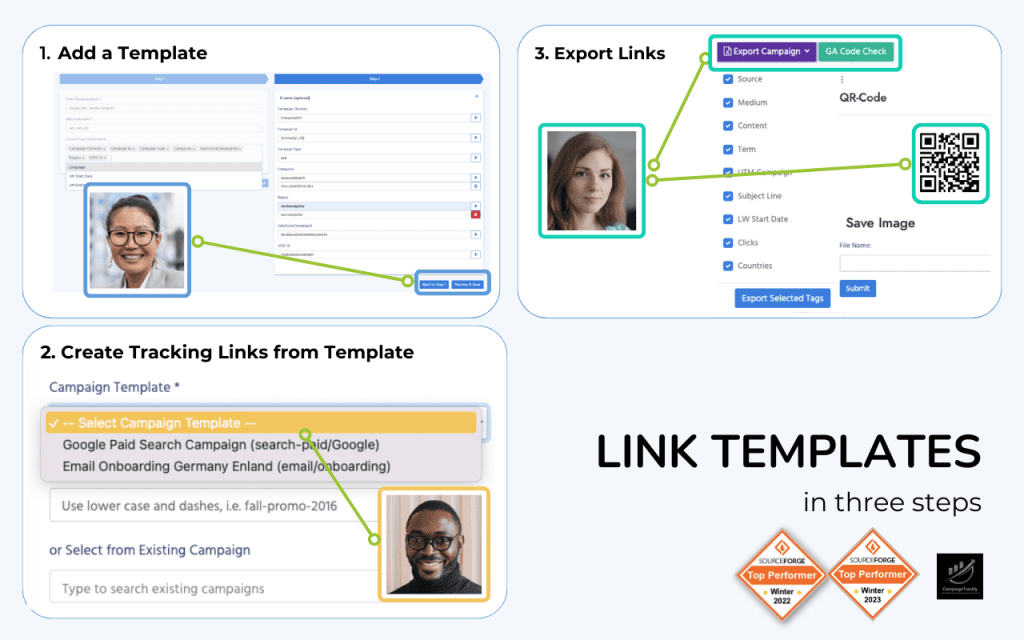
CampaignTrackly helps teams standardize campaign tracking before data reaches GA4. Instead of relying on manual typing, teams can use governed templates, approved values, naming rules, source / medium controls, and automated link generation.
This helps marketing teams create cleaner campaign links, reduce reporting errors, and make GA4 campaign performance easier to analyze.
Watch: How to Check Campaign Performance in GA4
The video below walks through how to find campaign performance in GA4 using the Traffic acquisition report, Session campaign, and Source / Medium.
GA4 Campaign Reporting Takeaways
To view campaign performance in GA4, start with the Traffic acquisition report and use Session campaign as your primary dimension. Then add Session source / medium to understand which platforms, channels, or placements drove each campaign.
For better campaign analysis, do not stop at users and sessions. Review engagement, events, key events, and revenue where available. These metrics help you understand whether a campaign drove meaningful outcomes, not just traffic.
Most importantly, remember that GA4 reporting depends on the quality of your campaign tracking. Cleaner tracking before launch leads to cleaner campaign performance reports after launch.
Frequently Asked Questions About Viewing Campaign Performance in GA4
Where do I find campaign performance in GA4?
Go to Reports → Acquisition → Traffic acquisition, then change the primary dimension to Session campaign. This lets you view campaign-level performance in GA4.
How do I see campaign source and medium in GA4?
In the Traffic acquisition report, select Session campaign as the primary dimension. Then click the blue plus icon and add Session source / medium as a secondary dimension.
Should I use Session campaign or First user campaign in GA4?
Use Session campaign when you want to analyze the campaign that drove a visit during the selected reporting period. Use First user campaign when you want to analyze the campaign that originally acquired the user.
Why can’t I see my campaign names in GA4?
You may be looking at the wrong report dimension, the campaign value may be missing from the URL, or the traffic may have passed through a redirect or platform that removed tracking parameters.
Why does the same campaign appear multiple times in GA4?
GA4 treats different spellings, capitalization, spacing, and punctuation as separate values. For example, spring_sale, Spring Sale, and spring-sale may appear as separate campaign rows.
What GA4 metrics should I review by campaign?
Review users, sessions, engaged sessions, engagement rate, average engagement time, events per session, key events, and revenue where applicable.
How can I make GA4 campaign performance reports cleaner?
Use consistent campaign naming rules, approved source and medium values, tracking templates, and validation before links are launched. CampaignTrackly helps standardize campaign tracking so GA4 receives cleaner data.