Here is how to find Campaign Parameters in Google Analytics 4 (GA4) Reports:
Historical Context (Universal Analytics)
NOTE: Previously, with Universal Analytics (GA3), you could find all your campaign UTM parameters in the Reports section under Acquisition>Campaigns>All Campaigns.
1. You had one place for your UTM reports.
It was under Reports>Acquisitions>All Campaigns.
You would go there to find out how how all your custom marketing campaigns performed when compared to each other.
The CAMPAIGN filter corresponded with the “UTM_campaign” analytics parameter that you would add to a link. The report listed all your tagged campaigns that generated clicks. Note, if you had tagged a campaign but it did not generate links, it would not have been included in here:
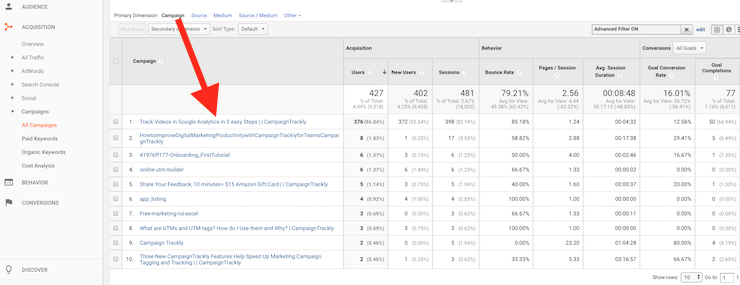
Image shows screen-grab of Universal Analytics>Acquisition>Campaigns>All Campaigns
2. Your had to toggle between utm_source, utm_medium, utm_keyword and utm_content to see your stats
1. In the image below, you can see how your campaigns could be compared based on traffic source (the website traffic came from) or medium (the type of traffic generated. These two filters corresponded with the UTM_source and UTM_medium analytics parameters:
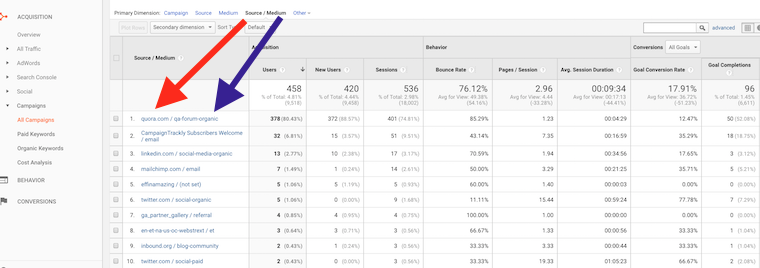
Image shows Universal Analytics>Acquisition>Campaigns>All Campaigns filtering traffic by utm_source and utm_medium
2. This screen grab compares performance by content type in the old GA platform – the blogs, in this case, are generating the largest number of goal completions. The content filter corresponded with the UTM_content analytics parameter:
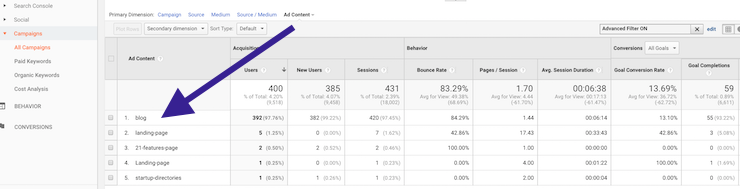
Image shows Universal Google Analytics>Acquisition>Campaigns>All Campaigns filtering by utm_content
3. And last, but not least, you could measure A/B testing results by using the term or “keyword” parameter in Google Analytics. The keyword filter corresponded with UTM_term analytics parameter.:
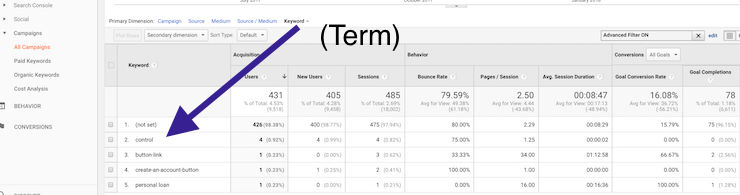
Image shows Universal Google Analytics>Acquisition>Campaigns>All Campaigns filtering by utm_term
<
Now, with GA4, access to UTM Campaign Parameters & Reports is so much easier
What is exciting about Google Analytics 4 when it comes to campaign parameters visibility:
- We have so many more report variations
- It is so much easier to pull your utm_source, utm_medium, and utm_campaign parameters with a click
- It can save you a lot of time, while providing great reports.

In the Acquisition Reports alone, your main UTM Campaign parameters are found in 3 places:
GA 4 makes it really easy for you to get your UTM campaign tracking results in two steps, anywhere in these sections:
- Acquisition Overview
- User Acquisition
- Traffic Acquisition.
Where to find the UTM Campaign parameter in the GA4 platform:
UTM Campaign in GA4 reports Can Be Found as Session Campaign or First User Campaign
1. Click the User Acquisition Report
Login to GA4, go to Reports, Lifecycle, Acquisition and User Acquisition.
Open the blue “+” filter option next to the title of the first column and you will see a drop-down with options to select campaign, as well as medium and source – it’s that easy!:
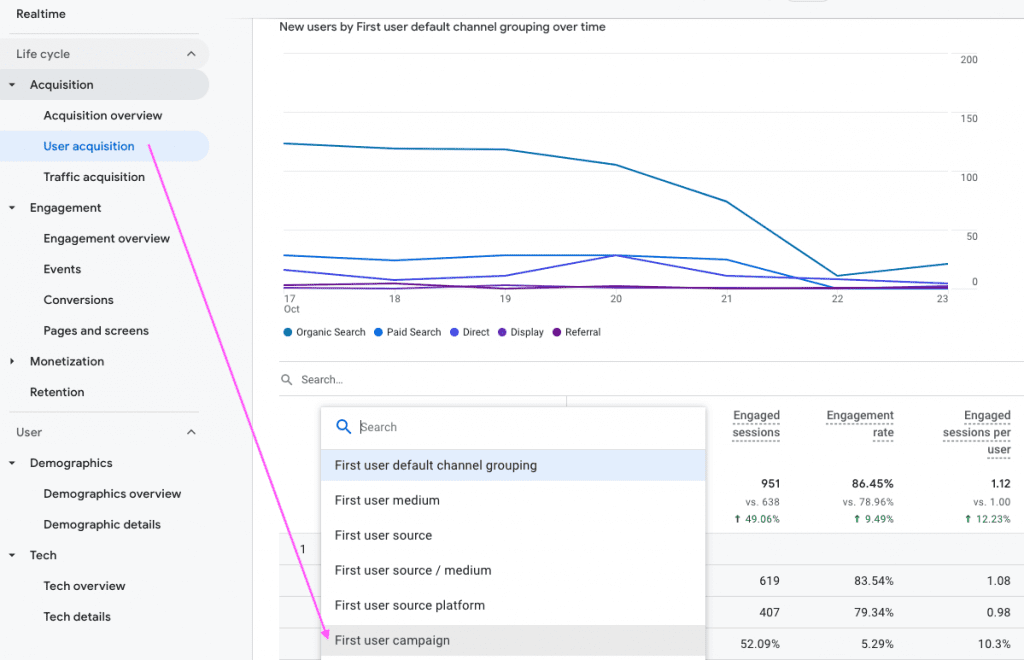
This image shows GA 4, the Acquisition > User acquisition report, where utm campaign parameter can be found under the First user campaign filter
2. Click the Traffic Acquisition Report
Find your UTM campaign parameters following the 2 steps below:
- Step 1: When you first get into the report you will see your traffic split by your default or custom traffic channels:
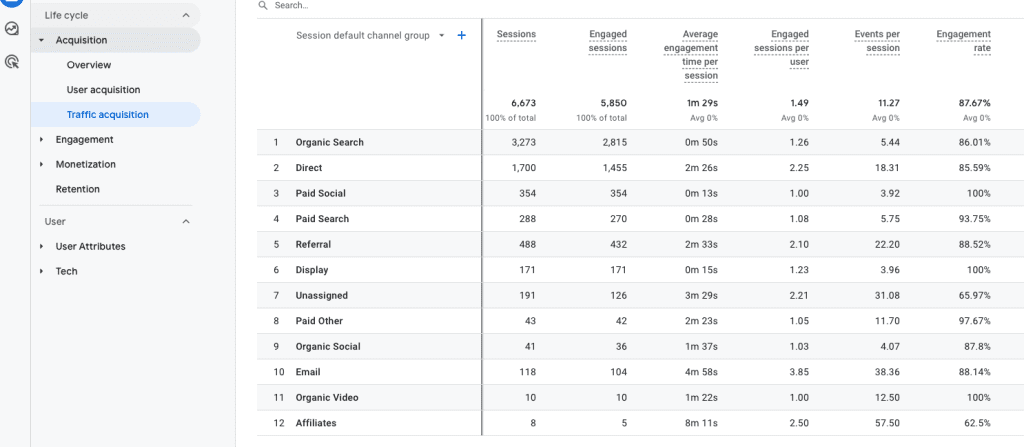
This is your GA4 Traffic Acquisition Report showing all your utm_medium values or default channels
- Step 2: Click the blue plus icon Next to Session default channel group. A popup will show, where you can type “Session campaign”:
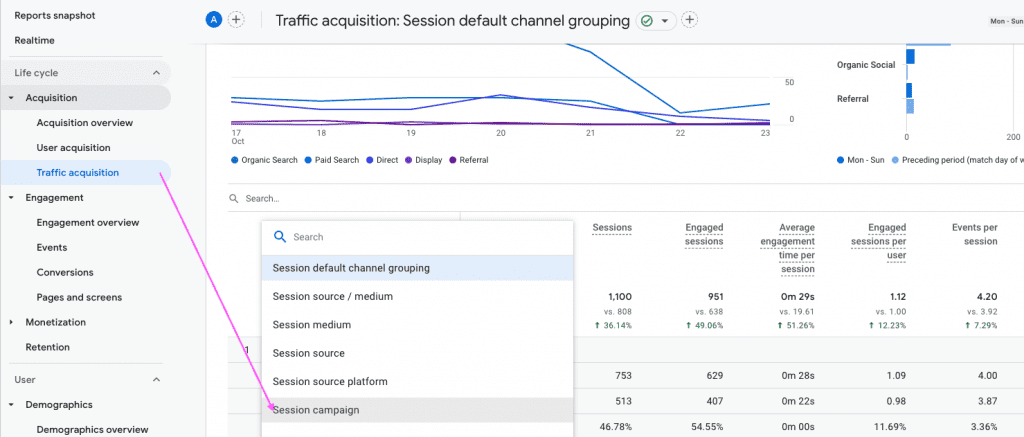
This image shows GA 4, where, in the Acquisition>Traffic acquisition report, utm campaign will be available under the Session campaign filter
3. Click the Acquisition Overview Report
Just open your Acquisition>Overview report, click the New Users Default Channel Group drop-down (shown in the 3rd top widget of the image below) – and select First user campaign.
First user campaign dimension shows you the activities that brought first-visit traffic on your website:
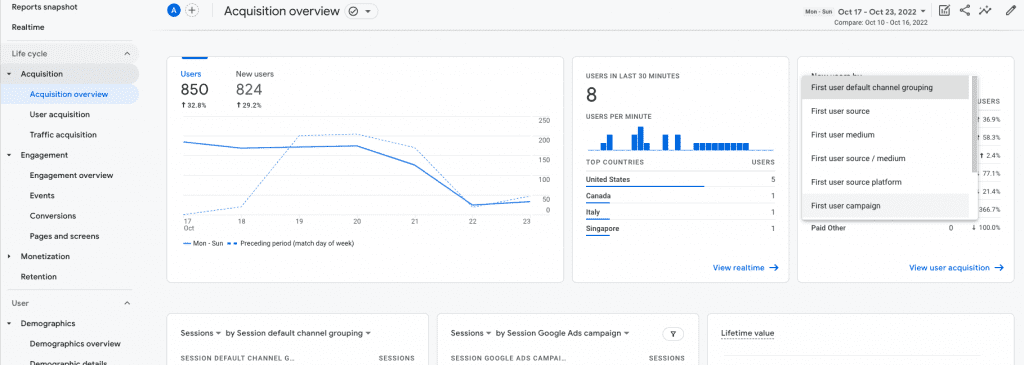
This mage shows GA 4, where, in the Acquisition overview, your out-of-the-box access to utm campaign will be at your top right, under First user campaign
Watch This Video to Uncover UTM Campaign Insights in GA4 in 3 Steps:
Where to find the UTM Content Parameter in GA 4:
UTM Content is Now Manual Ad Content
Go to Business objectives>Generate Leads>Traffic acquisition report. Here, you can edit your Session default channel group to replace it with Session source/medium to find your UTM Medium and UTM Source.
Click on the “+” icon to find UTM Content by selecting Session manual ad content. See the image below for an example:
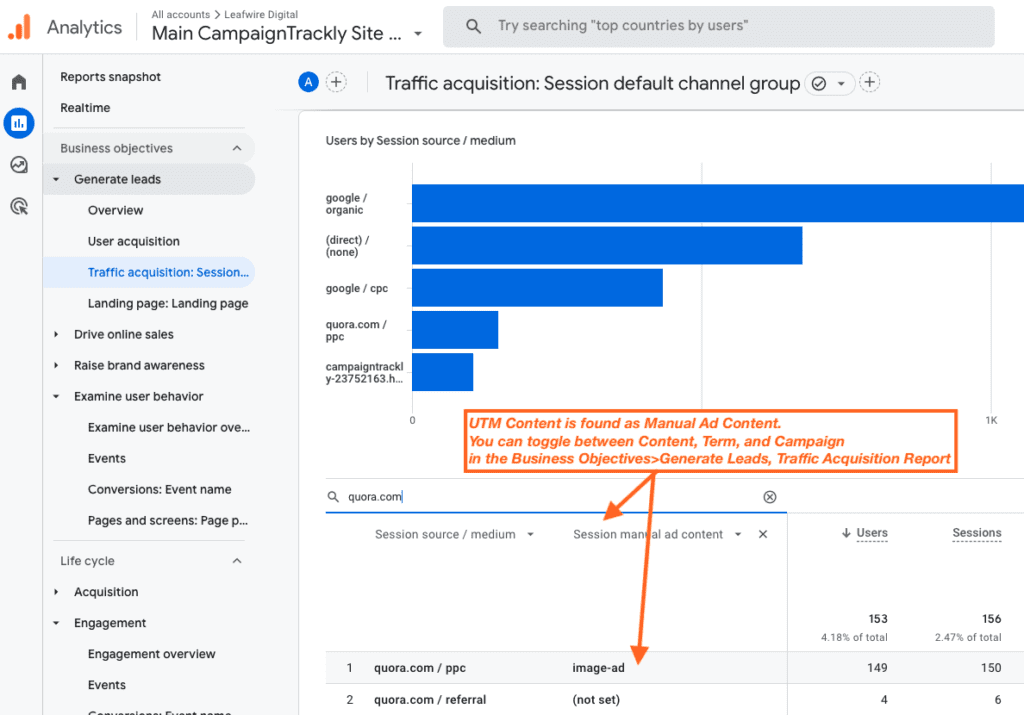
This image shows how to fid utm_content in the new GA4 platform
Where to find the UTM Term Parameter in GA 4:
UTM Term is Now Manual Term
In the same report, click on Session manual ad content and instead type “term” in the search popup to select a UTM term parameter option for your report.
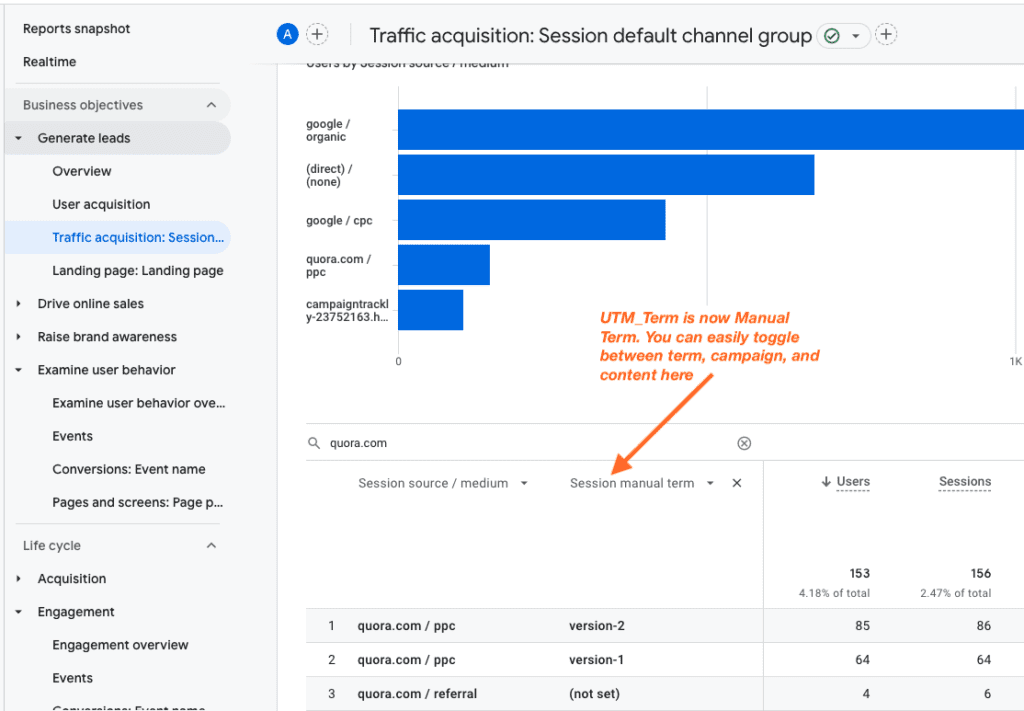
This image shows where to find Source, Medium, and UTM Term parameters in GA4
We have now covered where to find utm campaign, utm medium, utm source, utm content, and utm term in GA4 Lifecycle>Acquisition reports and Business Objectives>Lead Generation reports.
View UTM Campaign Stats in the Engagement Group of Reports
Comparing UTM Campaign Conversion Strength Against All Other Channels Is Easier than Ever:
In the Engagement reports, you need to go to Conversions: Event Name. Then replace your Default Channel Group With “Session Campaign” and use the search bar to type the conversion name you are looking to analyze – like “add_to_cart” or “generated_lead”.
Not sure how these conversions are to be set up? Follow this easy tutorial that shows you how to track sign ups and new leads in GA4
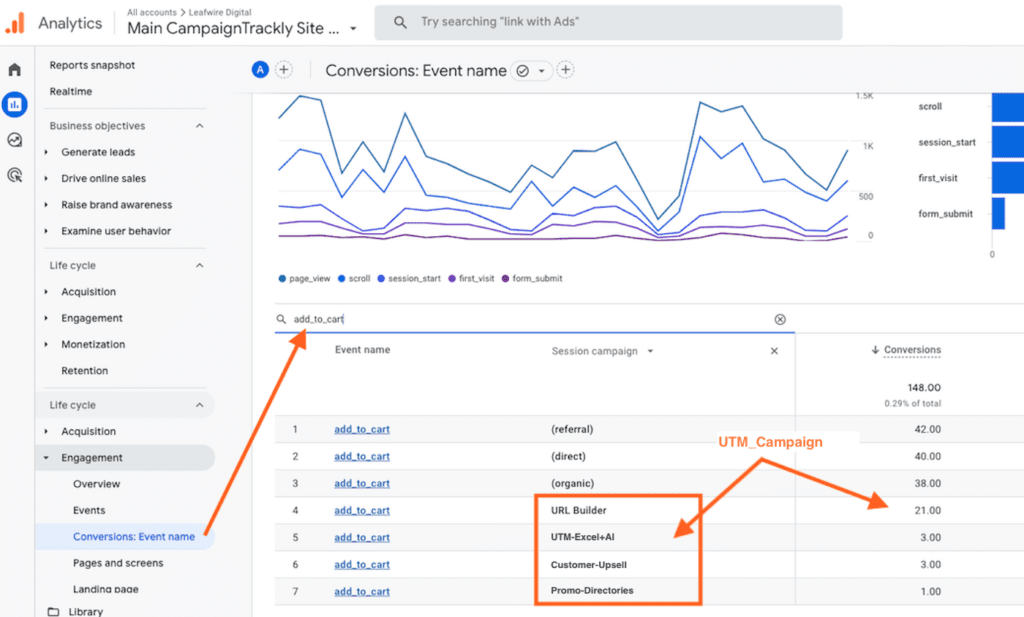
This image shows you the Engagement section in GA4, where you can easily drill down to compare UTM Campaigns against all other channels
Get more information on how to use UTM Campaign Parameters and save time
Learn how to use UTM parameters in your campaign tracking and measuring process – read our quick UTM training tutorials.
Free GA4 DIAGNOSTIC
Is Your GA4 Campaign Data Actually Accurate?
In 90 seconds, this diagnostic scan checks your GA4 campaign data and UTM tags, revealing misclassified traffic and broken parameters that hurt your marketing performance.
Most teams find 20-70% hidden issues as a result of this scan.
WHAT THE SCAN PROVIDES:
👉 Check My Campaign Data Integrity Score
Clear, actionable recommendations provided instantly.
In GA4 you can also use the “Explore” reporting option
Custom-build your reports to measure UTM campaigns. Set it once and forget it.
You can use the drag-and-drop features that Google Analytics 4 offers to build a UTM campaign parameters-only report. The best part is that you only need to build it once and save it. It will always be available for you to look and analyse it whenever you need it.
It is a tad tricky that in GA4 we no longer can subscribe to receive reports via emails. But at least you can still share its URL. Your report can look like this:
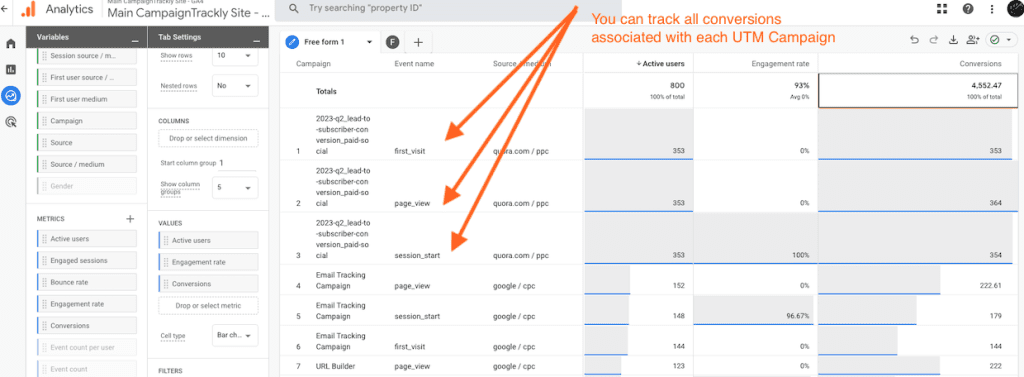
This ismage shows the GA4 Explorer reports which you can save and reuse with a click.
Are you in the process of trying to build a robust and sustainable link tracking strategy for your organization? Learn why campaigntrackly.com is the best campaign url builder for your needs – and your budget – and try it for free, no credit card required.
Pre-Launch Tool
Free 3-Minute GA4 UTM Campaign Tracking QA Checklist
Don’t launch with broken tracking. Use this quick 3-minute guide to validate your UTM parameters and ensure 100% accurate attribution.
The QA Checklist Covers:
👉 Get the 3-Minute QA Checklist
Stop “Unassigned” traffic before it starts.