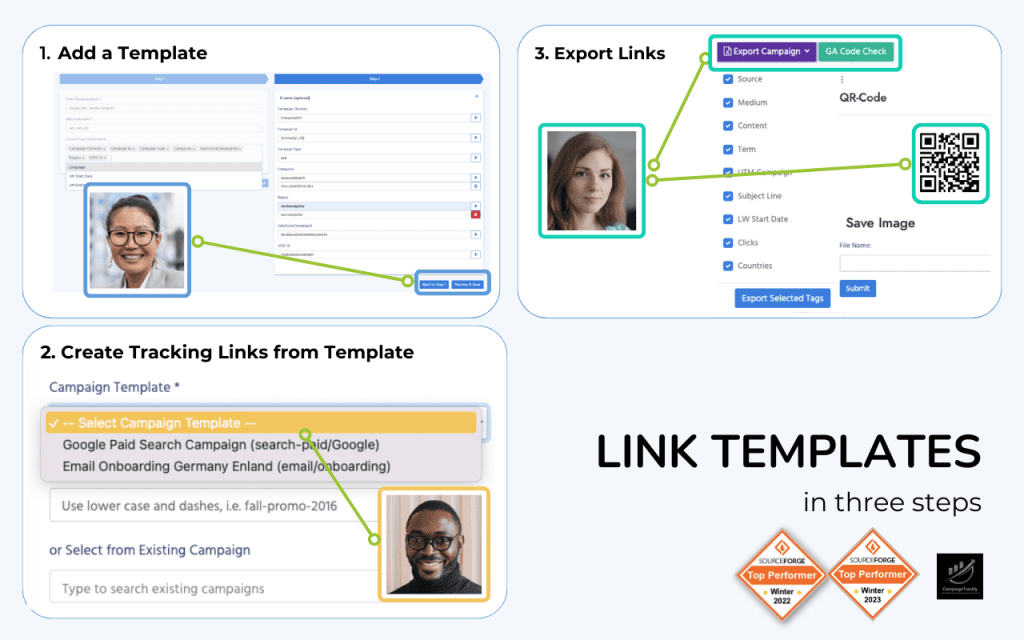
To make a QR code, you need a QR code software or QR code generator.
A QR code generator lets you choose what the QR code should do when someone scans it. For example, the QR code can open a website, display text, start an email, open a phone number, connect to WiFi, download a file, or send someone to a tracked campaign link.
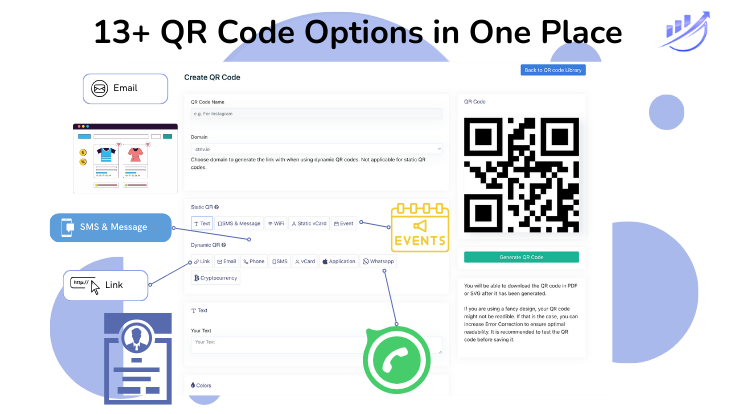
With CampaignTrackly’s QR code making engine, you can create 13 different types of QR codes depending on your use case.
Step 1: Open Your QR Code Software
Start by opening your QR code software or QR code generator.
In CampaignTrackly, go to the QR Codes section and choose Create QR Code.
Step 2: Choose the Type of QR Code
Next, choose what kind of QR code you want to create.
CampaignTrackly supports 13 different types of QR codes, including:
- Link
- Text
- SMS & Message
- WiFi
- Static vCard
- Event
- Phone
- SMS
- vCard
- Application
- File
- Cryptocurrency
For marketing campaigns, the most common option is a Link QR code, because it sends people to a landing page, product page, form, or tracked campaign URL.
Step 3: Name Your QR Code
Give your QR code a clear name.
For example:
Spring Event Booth QRor:
Instagram Promo QRThis helps you find, manage, and report on the QR code later.
Step 4: Choose the Domain
Select the domain that will be used for the QR code link.
For example:
https://ctrly.ioIf your account uses a branded domain, you can select that instead. A branded domain can make the QR code destination look more familiar and trustworthy.
Step 5: Add the Destination or Content
Now add the content the QR code should open.
For a Link QR code, add the destination URL.
Example:
https://example.com/summer-saleFor a tracked marketing QR code, use a URL with UTM parameters:
https://example.com/summer-sale?utm_source=qr&utm_medium=offline&utm_campaign=summer_saleThis allows your analytics platform to show that the visit came from a QR code.
Step 6: Preview the QR Code
Use the preview option before generating the final QR code.
This helps you confirm that the QR code looks correct and points to the right place.
Step 7: Generate the QR Code
Click Generate QR to create the QR code.
After the QR code is generated, you can download it and use it in print materials, event signage, packaging, direct mail, brochures, business cards, or other campaign assets.
Step 8: Test the QR Code
Before publishing or printing the QR code, always scan it with your phone.
Check that:
- the QR code opens correctly
- the destination page loads
- the page works well on mobile
- the tracking URL is correct
- the UTM parameters are included, if you are tracking the campaign
QR Code Best Practice
For marketing campaigns, use a tracked URL when creating your QR code.
For example:
https://example.com/demo?utm_source=qr&utm_medium=offline&utm_campaign=trade_show_boothThis helps you measure which offline campaign, flyer, event booth, brochure, or printed asset drove the website visit.