Why Are My UTM Parameters Not Showing in GA4?
You launched the campaign.
You appended UTMs.
You waited.
And now… GA4 shows nothing.
No campaign name. No source. No medium. Just “Direct” or “Unassigned.”
If your UTM parameters aren’t showing in GA4, the issue usually isn’t obvious. In fact, most failures happen silently — without throwing errors.
Below are the 7 most common silent failure points that prevent UTMs from appearing in GA4.
1️⃣ UTM Typos or Formatting Errors
The most common issue is also the simplest.
GA4 only recognizes specific parameter names:
-
utm_source -
utm_medium -
utm_campaign -
utm_term -
utm_content
Common mistakes:
-
utm-sourceinstead ofutm_source -
Capital letters (
UTM_Source) -
Misspelled parameter names
-
Duplicate question marks in URLs
-
Encoding issues
Even one character off — and GA4 ignores the parameter entirely. This is one reason why relying solely on an Excel spreadsheet or a manual Google UTM builder isn’t enough at scale.
Quick Fix:
Paste your full URL into your browser and inspect it carefully. Use Chrome DevTools → Network tab to confirm the exact query string sent to GA4.
2️⃣ Redirects Stripping Parameters
If your campaign link goes through:
-
Email click tracking
-
A shortener
-
A 301/302 redirect
-
A meta refresh redirect
-
A JavaScript redirect
There’s a chance the redirect removes the query string.
Example:
Redirects to:
Without UTMs.
This is extremely common with improperly configured shorteners or tracking platforms.
Quick Fix:
Open DevTools → Network tab → Watch the redirect chain.
Confirm UTMs survive every hop.
3️⃣ Single Page Application Routing Problems
Single Page Applications (SPAs) behave differently.
If your site is built with React, Vue, or Angular:
-
The page doesn’t fully reload.
-
UTMs may be read only once.
-
Route changes can overwrite session attribution.
If the analytics script loads before routing completes, UTMs may not register properly.
Silent Symptom:
Campaign shows in Real-Time but not in Acquisition reports.
Fix:
Ensure GA4 fires after routing completes. Use proper SPA measurement configuration.
4️⃣ GA4 Property or Stream Mismatch
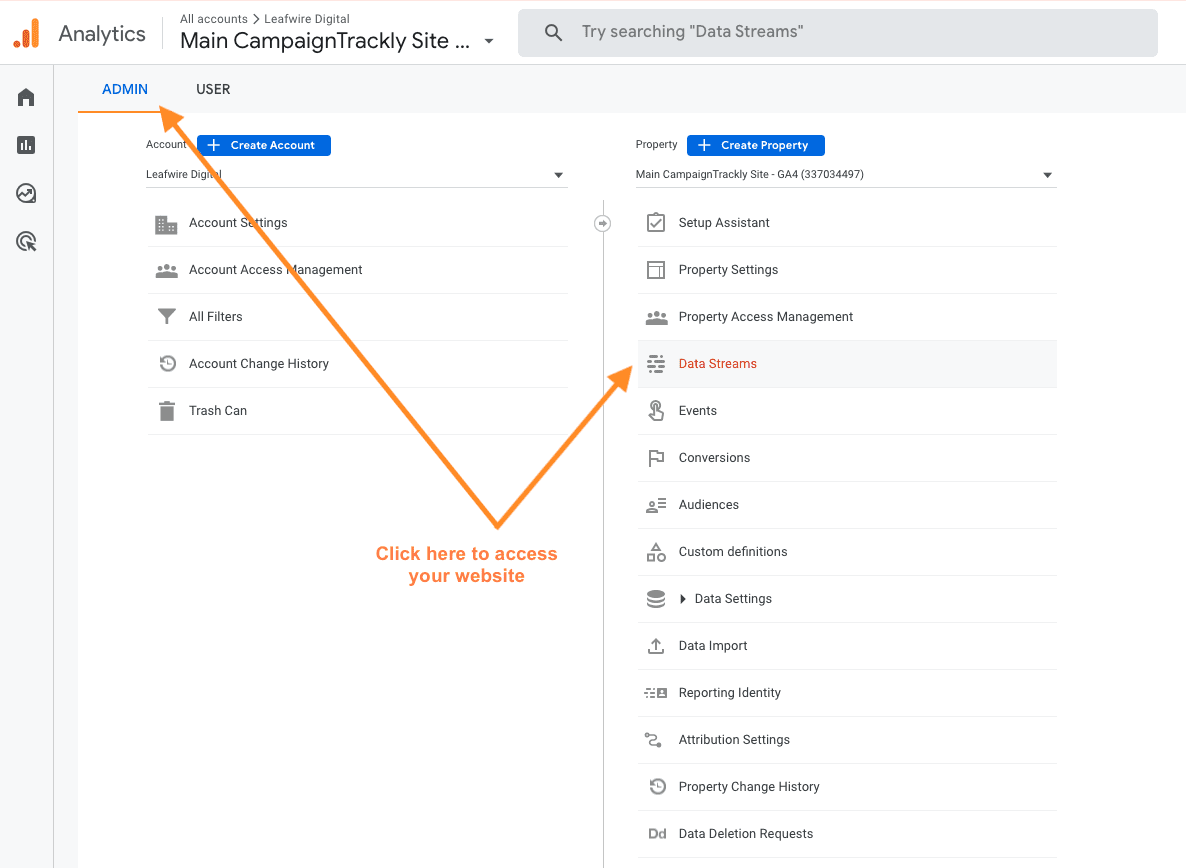
You may be checking the wrong property.
Common issues:
-
Testing on staging, but viewing production property
-
Wrong Measurement ID
-
Multiple GA4 streams
-
Hardcoded legacy GA ID
Fix:
Verify:
-
Correct GA4 Measurement ID
-
Correct web data stream
-
Same property ID used in GTM or gtag config
5️⃣ Consent Mode Interference
If you use consent banners or Google Consent Mode:
GA4 may delay or block analytics storage until consent is granted.
If a user leaves before consent:
-
Session data may not be recorded
-
UTMs may not persist
Silent Issue:
Campaign parameters exist — but no session is logged.
Fix:
Test in Incognito mode.
Accept consent.
Check DebugView in GA4.
6️⃣ Auto-Tagging Conflicts (Google Ads gclid)
If Google Ads auto-tagging is enabled:
-
GA4 prioritizes
gclid -
Manual UTMs may be overridden
-
Mixing auto-tagging and manual UTMs causes inconsistent attribution
Example:
Manual:
Auto:
GA4 may ignore manual UTMs in favor of gclid.
Fix:
Do not mix manual UTMs with Google Ads auto-tagging unless you understand override logic.
7️⃣ Session Timeout or Attribution Reset
UTMs only apply at session start.
If:
-
A user returns later
-
Session expires (30 minutes default)
-
Cross-domain tracking isn’t configured
-
Internal redirects trigger new sessions
GA4 may attribute traffic as Direct.
Fix:
Check:
-
Session timeout settings
-
Cross-domain measurement configuration
-
Internal redirects
How to Confirm UTMs Are Working (Step-by-Step)
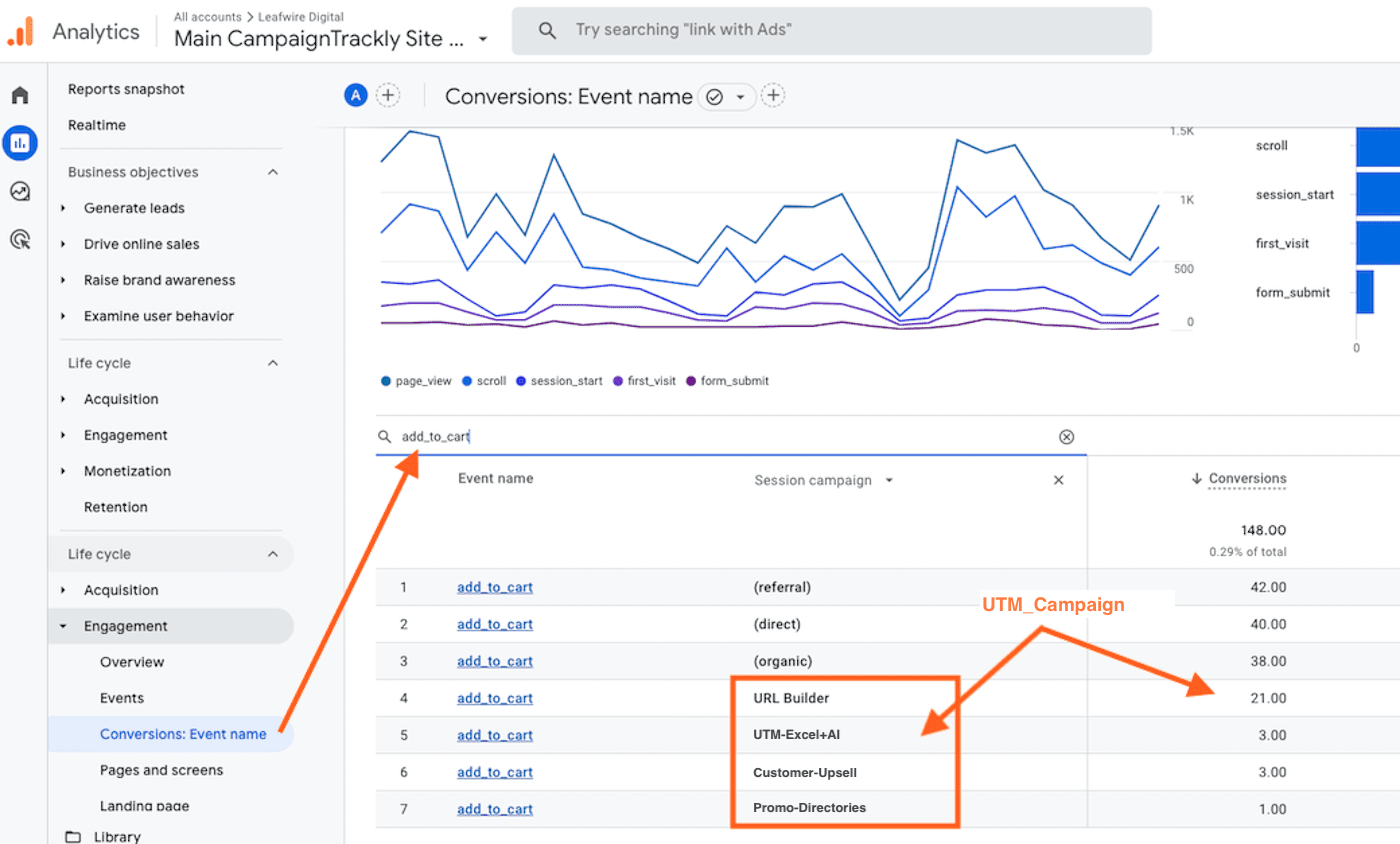
-
Open GA4 → DebugView
-
Visit your tagged URL
-
Check:
-
Session source
-
Session medium
-
Session campaign
-
-
Then check:
-
Reports → Acquisition → Traffic acquisition
-
If you don’t see it in DebugView, the problem is implementation.
If you see it in DebugView but not in reports, the problem is attribution logic.
The Bigger Issue: Silent Tracking Tag Leakage
Most teams assume UTMs are enough — but without proper campaign tracking framework and governance, inconsistencies compound silently.
When UTMs fail occasionally — not always — the issue becomes invisible.
You don’t notice one broken campaign.
But when:
-
10% of paid links break
-
15% of email links lose parameters
-
8% of redirects strip UTMs
Your attribution model becomes statistically distorted.
Dashboards still look “fine.”
But decisions are wrong.
🛡 Run a Governance Audit to Detect Parameter Leakage
Instead of manually debugging one campaign at a time, enterprise teams implement GA4 campaign tracking audit automatically.
A governance audit can detect:
-
Broken or missing parameters
-
Redirect stripping
-
Naming violations
-
Medium misclassification
-
Duplicate campaigns
-
Auto-tagging conflicts
FAQ Section
Why are my UTMs not appearing in GA4 Real-Time?
If UTMs don’t appear in Real-Time, they are likely being stripped during redirects, blocked by consent mode, or incorrectly formatted.
Do UTMs work automatically in GA4?
Yes. GA4 automatically captures utm_source, utm_medium, utm_campaign, utm_term, and utm_content when formatted correctly.
Why does GA4 show Direct instead of my UTM?
This usually happens due to redirect stripping, session timeout, cross-domain misconfiguration, or auto-tagging conflicts.
Can Google Ads auto-tagging override UTMs?
Yes. When auto-tagging is enabled, GA4 prioritizes gclid over manual UTMs.
Related Posts